
Setup appraisal timelines and notifications for a performance appraisal plan. Configure settings related to the time frame of the appraisal plan. This includes the type of appraisal (Annual, Half-yearly, Quarterly or Monthly), the appraisal period for which the appraisal is carried out. Set automated reminders to initiate the appraisal two-three days before the date of the appraisal.
Note: The steps mentioned below are of Empxtrack Enterprise product.
To setup appraisal timelines and notifications for an appraisal plan, you need to:
● Log into the system as an HR Manager or Administrator.
● Click on Product configurations.
● In the Performance Management section, click on the Appraisal plans link.

● Click on the View icon corresponding to the appraisal plan that you want to configure for its time and appraisal notifications. A new page appears where you can configure settings in the Plan introduction, Time & notifications, Forms & settings, and Visibility rules tabs.
● By default, Plan Introduction tab is opened. The page displays details of the appraisal plan that need to be configured.

● Click on the Time & notifications tab.

● Time and notifications is configured for Appraisal, PIP, and CPM. By default, Appraisal is selected such that the user can configure time settings for the appraisal plan.
- Select the type of the plan from Type field. The options available are Annual, Half yearly, Quarterly, and Monthly.
- Select the appraisal plan start date and end date by using calendar controls in the Plan Start field.
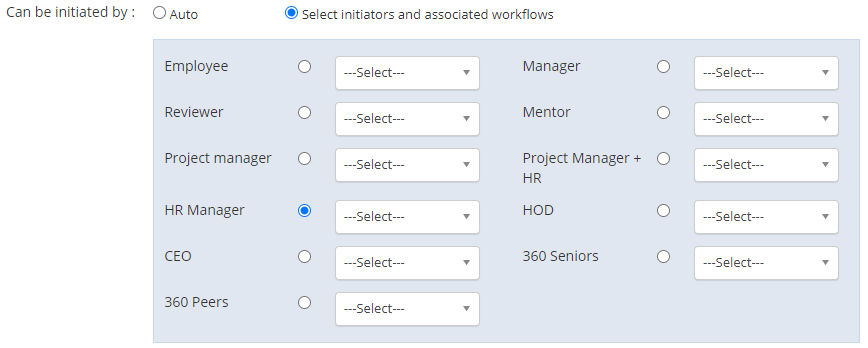
- Select the initiation option for the workflow from Can be initiated by field. The available options are:
- Automatic: Select this option if you want the appraisal to be initiated on the start date mentioned for the approval. If you select this option, select the sub-option when you wish to initiate the appraisal and then select the appraisal workflow for the selected option. Appraisal can be auto initiated at the time of completion of one year (Work anniversary), job confirmation or completion of probation period.

- Select initiators and associated workflows: Select this option if you want to select appraisal initiators and workflows depending upon the role. You can select the roles who would be allowed to setup and initiate an appraisal in the organization, and then select the appraisal workflow from the dropdown. In most of the organization, HR manager initiates a performance appraisal process.
- Select the workflow that you want to use for the appraisal from the Workflow dropdown. You can now configure the appraisal notifications/ reminder for all the stakeholders involved in the workflow at each stage of setup appraisal timelines and notifications.
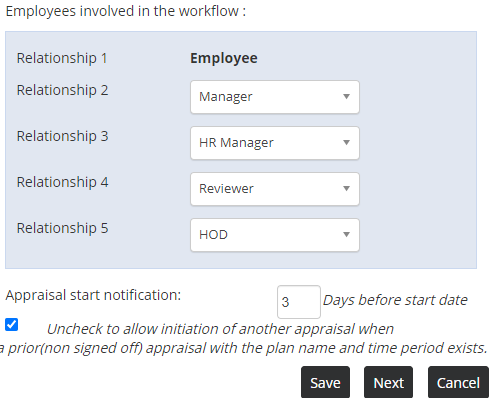
- Select the Employees involved in the workflow to specify the stakeholders who can participate in the appraisal process. You can choose the Relationship from the dropdown. Relationship 1 is specified as Employee, you can select the rest of the relationships to define participants in the appraisal.

- Select the checkbox labelled as Uncheck to allow initiation of another appraisal when a prior (non signed off) appraisal with the plan name and time period exists. This option is selected when you don’t want to allow initiation of another appraisal plan when a prior appraisal exists for the same time period.
- Automatic: Select this option if you want the appraisal to be initiated on the start date mentioned for the approval. If you select this option, select the sub-option when you wish to initiate the appraisal and then select the appraisal workflow for the selected option. Appraisal can be auto initiated at the time of completion of one year (Work anniversary), job confirmation or completion of probation period.

● Click Save. A message suggesting that settings have been saved appears on the screen. You can now click Next to setup appraisal Forms and Settings.
Suggested Links





