 Skip to content
Configure Development Plan form to capture employee learning and development needs. The form is filled in by the employee and is updated by the manager. This help page demonstrates steps to configure Development Plan form with development needs, training needs and career plan fields.
Note: The steps mentioned below are of Empxtrack Enterprise product.
To configure the development plan form, you need to:
● First follow steps given on the Configure Performance Appraisal Forms page. Click Add new form button to add Employee Development Plan form if it does not exist.
● Click Edit icon corresponding to the Employee Development Plan form. The form appears in editable mode.
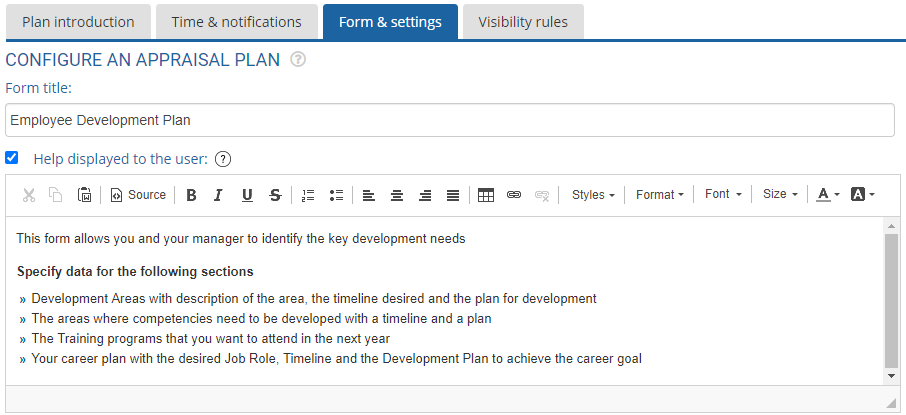
● Configure the help instructions in the Help displayed to the user text field as per your requirements. This field is useful, especially when you modify few fields and want to provide help on those fields. By default, Help displayed to the user checkbox is marked. If you do not want to show help instructions to the user on Employee Profile form, uncheck this checkbox.
● In the View and edit rules for employee development plan form section, select Employees can setup their development plan checkbox if you want to allow employees to set their development plan.
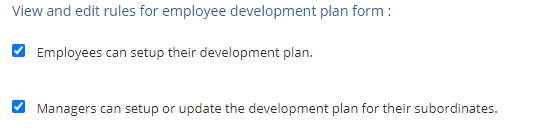
● Select Managers can setup or update the development plan for their subordinates checkbox to allow managers to set the development plan for their subordinates.
● Select Development areas checkbox to configure the rules related to development area. Select the number of development areas that user can specify in the Number of areas where inputs may be provided (recommended: 2 – 3) dropdown.
● In the Inputs required on section, select the check boxes labelled as Area, Timeline and Plan if inputs are required by the user for each development area.

● Select Competency Development checkbox to configure the rules related to competency development. The related fields appear.
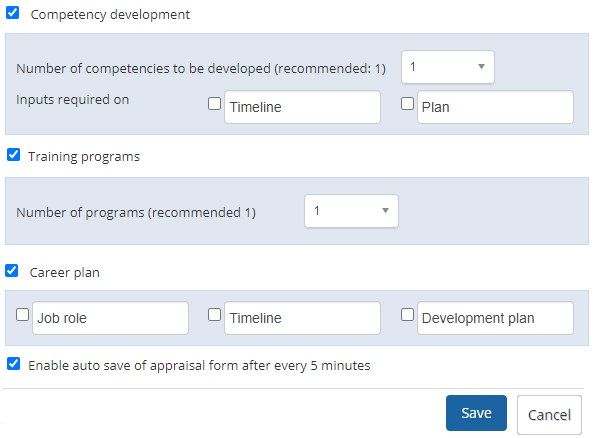
● Select a value from the Number of competencies to be developed (recommended: 1) dropdown. Select the Timeline and/or Plan options if inputs are required by the user for each competency.
● Select Training Programs checkbox to configure the number of training programs allowed. Select the number of training programs you want to allow from Number of programs (recommended 1) dropdown.
● Select Career Plan checkbox and the related fields appear. Select Job role, Timeline and Development plan options if these fields need to be specified by the user.
● Select Enable auto save of appraisal form to save the changes made in appraisal form frequently.
● Click on the Save button. Employee Development Plan form is successfully updated and a message suggesting the same appears on the screen.
● Click Cancel to go back to the Forms & Settings tab.
Suggested Links
- Setup Performance Appraisal Plans
- Initiate Appraisal
- Change Appraisal State
- Configure Performance Potential Settings
- Appraisal-Employee Access
- Manage Team Appraisal – Filter Records
- Print Appraisal
- Manager Appraisal Dashboard
- Create a new Rating Scale





