 Skip to content
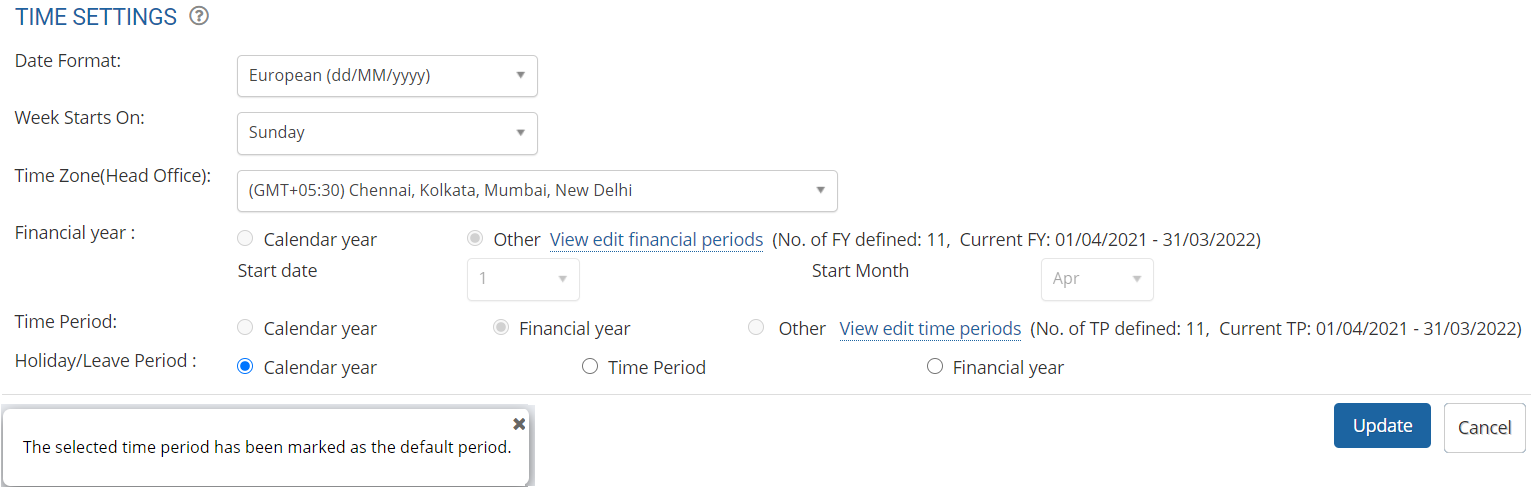
Configure time settings for the time zone used in your organization. Check the date format and other such parameters. Set up/modify time information using time settings functionality. This is important as various activities (such as payroll, timesheet, leave, appraisal and other schedulers) are based on these settings. The steps mentioned below are of Empxtrack Enterprise product.
Note: Empxtrack allows selection of preferred time zone and date format at the time of application setup.
To configure time settings, you need to:
● Log into the system as HR Manager/ Administrator.
● Click Product configurations. Under Time Settings section, click Global time settings link.
● In Step 1, select the date format and the start day of the week in your organization.
● Select the time zone from the Time Zone (Head Office) field.

● In Step 2, configure the financial year by selecting either Calendar year or Other.
● In Step 3, select the Time period. Next, enter the information for the Holiday and Leave Period. Click confirm.
Besides payroll, the time periods are also required by other modules such as Goal settings, Appraisal, and Training.
Suggested Links
- Setup Password Policy
- Send Password to Employees
- Forget Password
- Reset Password
- Setup, View and Edit Email Templates
- Navigation in Empxtrack
- Multiple Upgrade Options in Empxtrack
- Setup Global Groups
- Setup Access Controls
- Manage Workflows
- Setup Skills and Competencies
- Setup Company Information
- Upload Employee Data
- Upload Reporting Relationship Data
- Setup HR Admin
- Setup Roles
- Masquerade as another employee
- File Validation Utility
- Open CSV File
- Save CSV File
- Advanced Search





