 Skip to content
Empxtrack offers configuration options to setup exit management module as needed. This help page guides you through the steps to configure exit types and reasons.
To configure the exit type and reason, follow the steps:
● Login as HR Manager.
● Click on the Product Configurations tab. Under the Setup Masters section, click Employee Data Masters.
● Go to Employment Records (Promotions, Transfers, Exit) Related Masters section on the data masters page.
● Click the + sign in front of Exit Type.
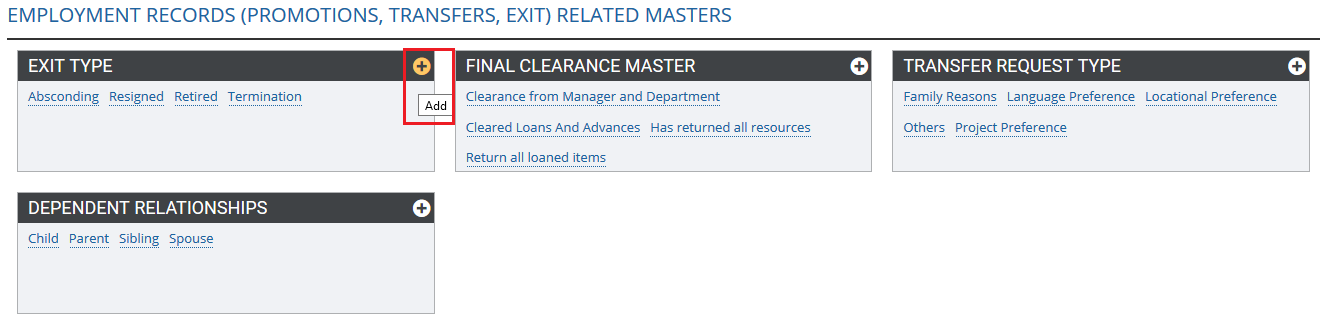
● A dialog box appears where you can Add or Edit Exit Type. Mention the Exit type and Description in the text boxes, and click Save.

● To add Exit reason, click on the newly added master and click on the Add reason for exit link at the bottom. Mention the reason and a brief description.

● Click on the Save button to save the reason.

● The newly added exit reasons are shown on the screen with Delete and Edit icons. To edit the reason, click on the pencil icon and then click the delete icon to delete the reason.

● Click Save.
Learn more about Empxtrack Exit Management
Suggested Links





