 Skip to content
Empxtrack allows the creation of an online directory containing details of all employees. To setup company directory, one can select up to 10 fields to add employee details.
Note: The steps mentioned below are for the Empxtrack Enterprise product.
To setup company directory, you need to follow the steps mentioned below:
● Log into the system as an HR Manager.
● On the Dashboard page, click on Product configurations. In the Employee Portal Setup, click the Company directory settings link.
● Setup the variables and the order, and it will display in the company directory for all employees. Active variables from Employee basic info, Employment details, and Employee other details are automatically displayed here and can be configured by using Configure HRIS fields.

● Click on a variable to change its label/ name or to Hide it.
● Select the check boxes labelled as Check to display employee profile icon if you want to show these in additional data for employees.
● Change the order of the variables by clicking the upward or downward arrows next to a field to move it up or down.
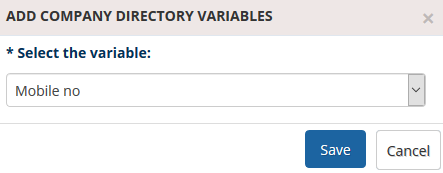
● Click the Add another Variable button if you want to add more variables to the existing list. You can display up to 10 variables.
● The Add company directory variables page appears. Select the suitable variable from the dropdown and save it.
● The field that you have added appears in Company Directory page.

Learn more about Empxtrack Self Service Portal
Suggested Links





