 Skip to content
An employer deducts tax from employees’ taxable income as per the rules of the new and old tax regimes. This is called Tax Deducted at Source (TDS). To deduct TDS accurately, employees must declare investments to claim entitled deductions and exemptions.
Throughout the year, tax is deducted based on the investment information provided by employees. In the old tax regime, investments needed to be declared clearly and their proofs were submitted to support the declaration. Before the end of a financial year, employees are required to submit documentary proof so that tax adjustments can be made and accurate tax is deducted.
How to Manage Investment Declarations in Empxtrack
Declare Investments as an Employee
● Log into the system as an Employee.
● On the Dashboards page, go to the Role and features menu  and click Salary records. Alternatively, you can also click View corresponding to the investment declaration initiation message in the Message Center.

● The Payslips page appears. Click My Declarations to set up your tax declarations for the current financial year. The past year’s declarations are available below. Note: As an employee, you can submit declarations only when the time period for changes is enabled by your payroll administrator/ HR manager.
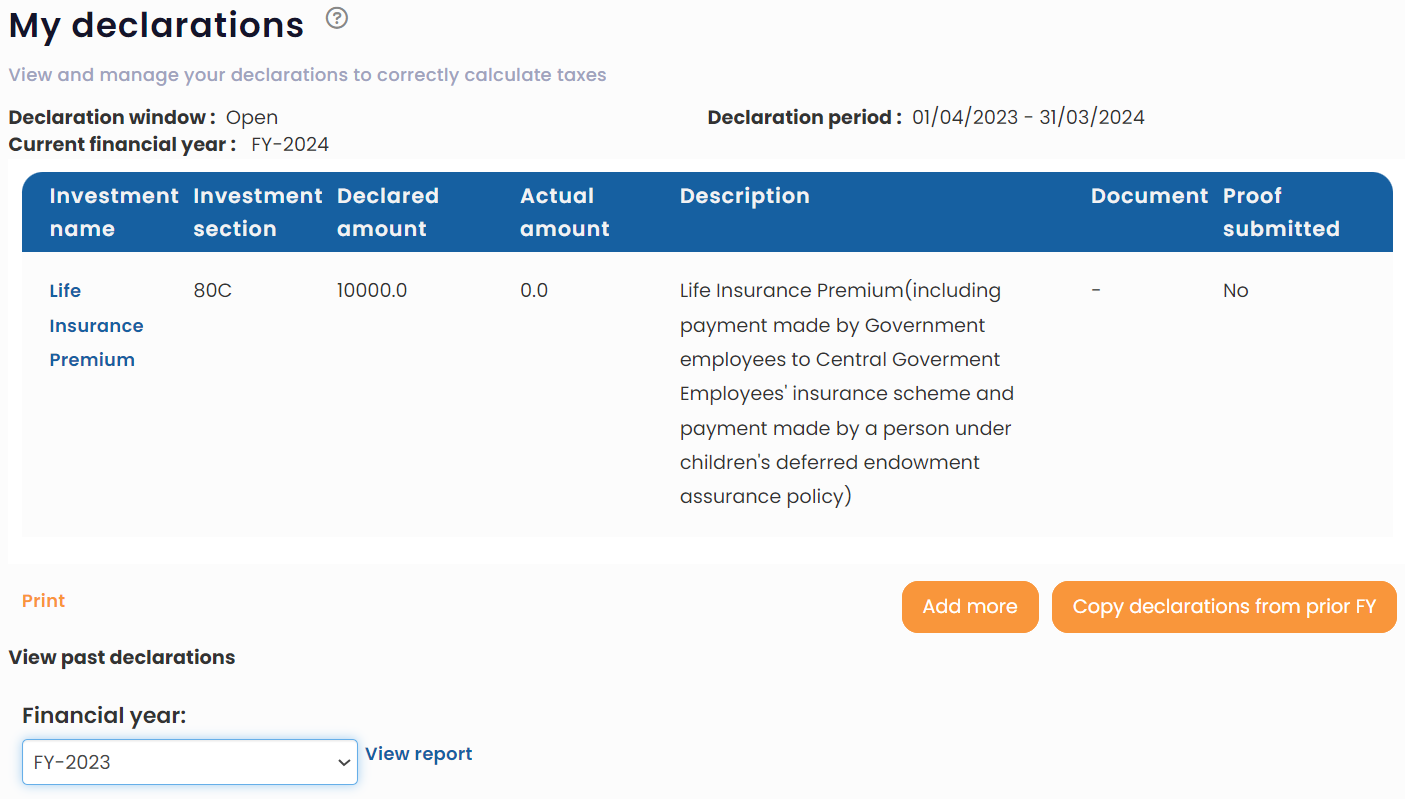
● Click Copy declarations from prior FY if you want to invest in the same schemes again. You can now modify the details, if required. The page also displays past investment details that you have already made in the View Past Declarations section. To know more about viewing previous years declarations, click here.
● Click Add More to add more investment details. The Add declaration window appears. While adding a declaration, you should select the section and sub-section (as applicable), enter the amounts and attach the relevant documents before submitting. The payroll administrator will review your submission and mark it as accepted or rejected.
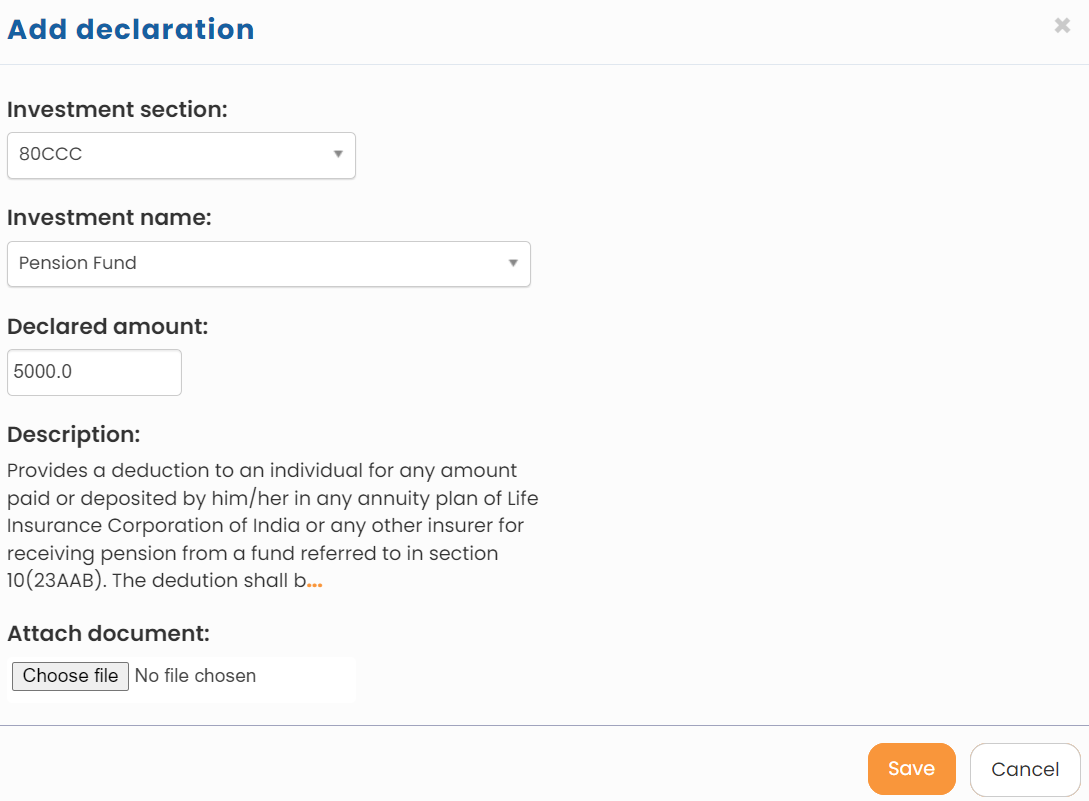
● Select the type of investment from the Investment section dropdown. The dropdown appears with a list of saving schemes under which you can invest your money. The Investment name dropdown is populated with the various investments schemes that are available under the selected investment type.
● Select the investment scheme in which you want to invest from Investment name dropdown.
● Provide the amount that you want to invest under the selected scheme in the Declared amount for the record.
● Click Save. Your investment details are now available to your HR manager. You can repeat the same process to add more investment details.
Declare Investments as an HR Manager/ HR Admin
Learn steps to know how HR can manage investment declarations on behalf of employees.
● Log into the system as an HR Manager/ HR Admin.
● On the Dashboards page, go to the Role and features menu and click Payroll. Under Payroll options, click Manage Declarations to set up investment declarations for employees.
● On the Manage Declarations page, you can view the declarations for all employees (section wise) for the selected financial year and download a data report for actual/ declared values.
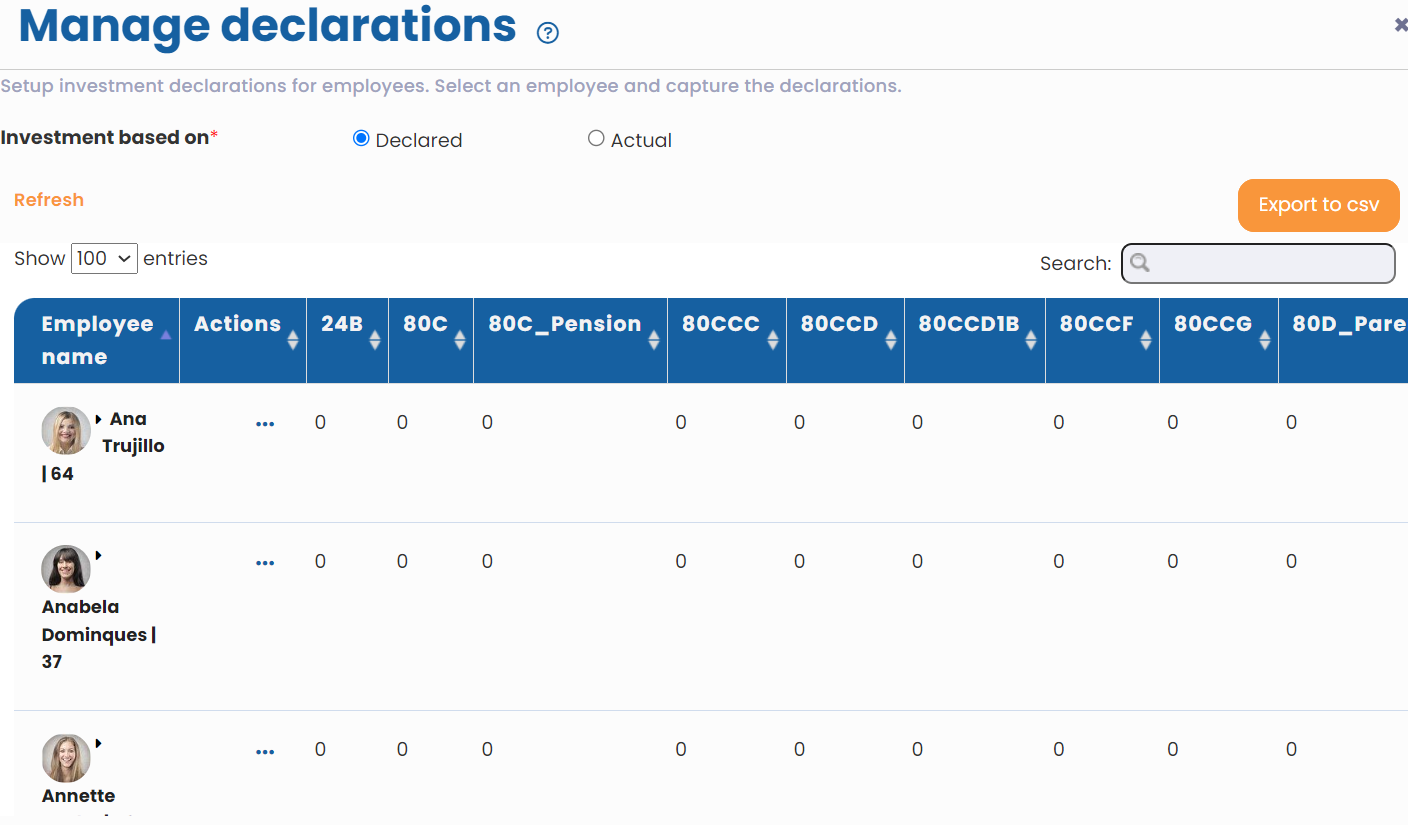
● To edit employee declarations, click Edit under Actions. Employee declaration details will be displayed in a new window.
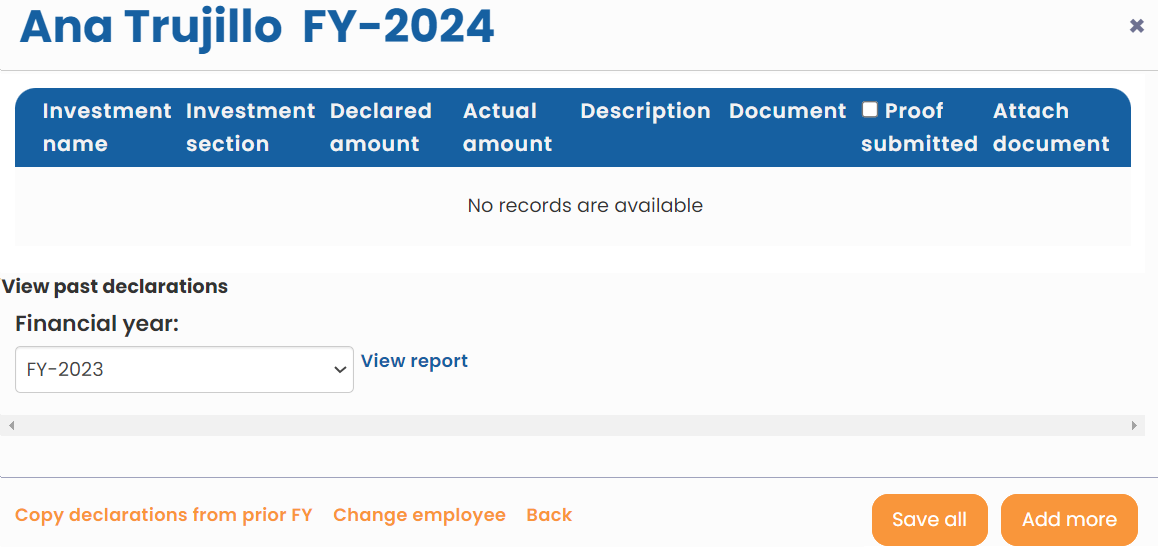
● You can add new investments, make changes or copy from a prior financial year in the edit page. To manage declarations for other employees, click the Change employee link. Repeat the same steps to make changes or add investment declarations for other employees.
Learn more about Empxtrack Payroll
Suggested Links





