 Skip to content
This page describes the functionality of approval and changes for payroll as an approver. An approver is responsible for verifying payroll calculations for the selected employees. It is important to take care of approval and changes for payroll as an approver. They can approve the payroll for further processing or reject the payroll or even send it back for correction.
Note: The option to Verify Payroll is not available in Empxtrack Free Payroll and HR software Trial. Clear Trial data and upgrade your product to avail this feature.
To verify and approve the payroll, you need to:
● Log into the system as an Employee who has been assigned the Approver role.
● Click the View icon on the payroll message that suggests you verify/ approve payroll for the current pay period.

● The page allows you to view various reports to verify the payroll and check if the salaries of the employees are calculated correctly.
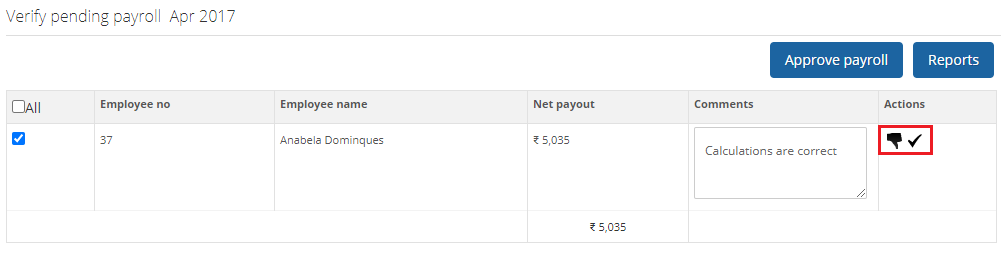
● Select the employees whose salary calculations you want to review and then click on the desired report under the Reports section to view salary calculation details.
● Enter your comments on salary calculations in the Comments textbox.
● Click icon  to finalize the payroll or click icon
  to send the payroll back to HR Manager to perform payroll calculation again for a specific employee.
Tip: If you reject a payroll and send it back to the HR Manager for correction, then you must provide comments before rejecting a payroll.
● You can select all the employees together and approve the payroll for all of them by selecting the All check box in the header and clicking the Approve Payroll button.
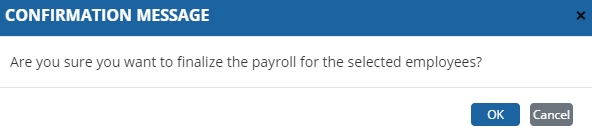
● A confirmation message for the approval of payroll appears.
● Click OK.
● The payroll is successfully approved and all selected records (approved/ disapproved) disappear from the page.
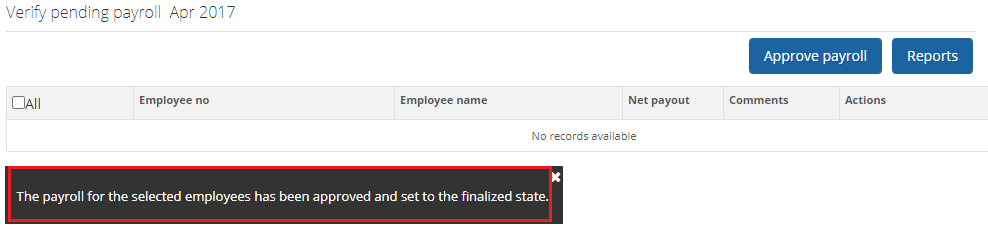
● The payroll is now sent to the HR Manager for Finalization or Recalculation.
Suggested Links
- Initiate Payroll
- Calculate Payroll
- Adjust Payroll
- Submit Payroll for Approval
- Finalize Payroll
- Set Payment Mode
- Disburse Payroll
- Manage Challan Info
- Capture Multiple Challan
- Capture Challan TNS 281 Details
- Generate Form 24Q
- Add Acknowledgment Info
- Employee data verification and update
- Import number of days employee worked
- Update out of payroll payments
- Calculate deductions and set up disburse date
- Share payslips with employees
- View Payroll Reports
- View and download statutory reports and challans
- Setup and Upload Monthly Sheet
- Clear Payroll





