 Skip to content
Advanced Search is used to filter employees using a specific search criteria. It goes beyond basic search functions by allowing users to define and apply specific search criteria or conditions to narrow down the results.
To use advanced search, follow the steps:
● Click Add or edit an employee.
● Click the Advanced search icon.
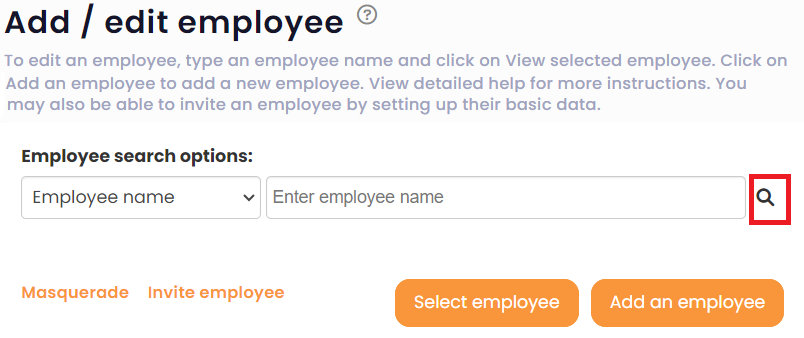
Note: In Empxtrack, Advanced search icon is given in multiple sections to find employees who meet a specific criteria.
● The Empxtrack Search page appears.
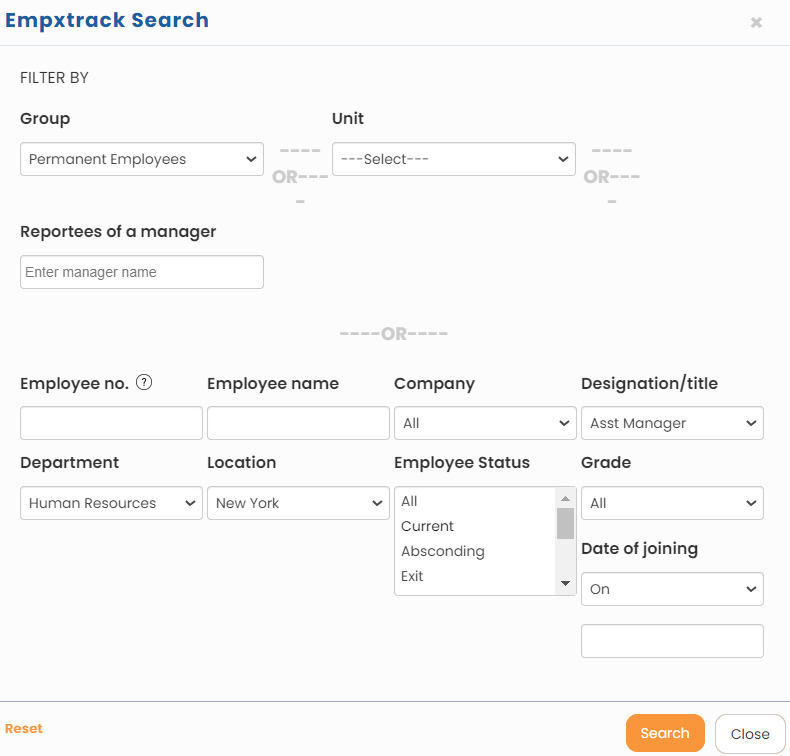
● The page allows you to search the employees based on their Group or Unit or Reportees of a manager. If you need to search employees based on a specific criteria, then specify the search criteria by selecting the desired options in the Filter By section of the page.
● This section allows you to search employees on the basis of the Employee Number, Employee Name,Company, Designation, Department, Location, Employee Status, and Grade.
For example, if you wish to select all the permanent employees from the human resources department in New York having the designation of Assistant Manager, then you need to:
- a) Select Permanent from the Group dropdown. Then select Assistant Manager, Human Resources, New York from Designation, Department and Location dropdown respectively.
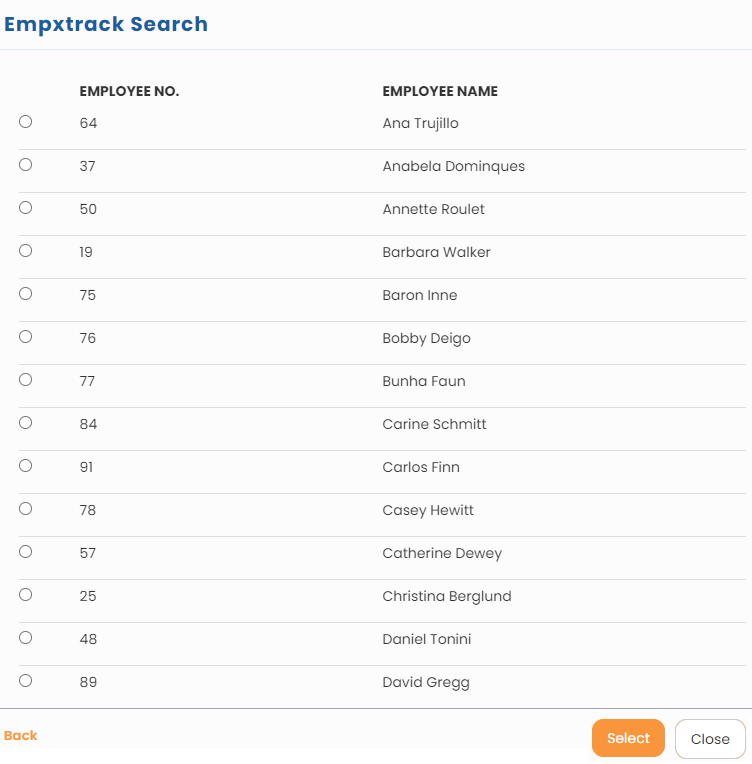
- b) Click Search. A list of all the employees meeting the search criteria appears.
Suggested Links
- Setup Password Policy
- Send Password to Employees
- Forget Password
- Reset Password
- Setup, View and Edit Email Templates
- Navigation in Empxtrack
- Multiple Upgrade Options in Empxtrack
- Setup Global Groups
- Setup Access Controls
- Manage Workflows
- Setup Skills and Competencies
- Setup Company Information
- Time Settings
- Upload Employee Data
- Upload Reporting Relationship Data
- Setup HR Admin
- Setup Roles
- Masquerade as another employee
- File Validation Utility
- Open CSV File
- Save CSV File





