 Skip to content
When an employee is unable to retrieve or have forgotten a password, Forget Password functionality is used to reset the password.
Note: Empxtrack provides two-factor authentication to prevent data breaches and avoid security risks.
To reset a password, an employee can follow these steps:
● Visit the Empxtrack portal login page.
● Click on Login problems link on the login window.

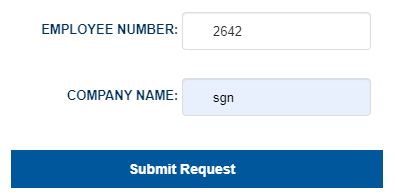
● Then, provide employee code and name of your organization in the Employee Number and Company Name fields respectively.
● Click Submit Request button. An email is sent to your email account with link to reset your password.
Note: The password reset link can only be sent to you, if your valid email id is registered in the system.
Suggested Links
- Setup Password Policy
- Send Password to Employees
- Reset Password
- Setup, View and Edit Email Templates
- Navigation in Empxtrack
- Multiple Upgrade Options in Empxtrack
- Setup Global Groups
- Setup Access Controls
- Manage Workflows
- Setup Skills and Competencies
- Setup Company Information
- Time Settings
- Upload Employee Data
- Upload Reporting Relationship Data
- Setup HR Admin
- Setup Roles
- Masquerade as another employee
- File Validation Utility
- Open CSV File
- Save CSV File
- Advanced Search





