 Skip to content
You can reset password for Empxtrack portal in two ways. An employee can do it on their own or an HR manager can reset the password on behalf of an employee.
Note: Empxtrack provides two-factor authentication to prevent data breaches and avoid security risks.
Reset Password as an Employee
Follow the steps given below:
● Login as an Employee.
● Click on the down arrow adjacent to your name and select Update password.
Alternatively, on the Search bar, type Update password.
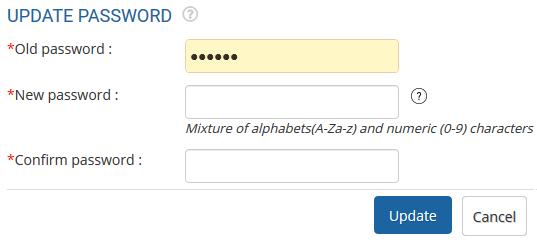
● Click Update. The password is reset successfully and a message suggesting the same appears on the screen.
Reset Password as an HR Manager
To reset the password as an HR manager, you need to follow the steps given below:
● Login as an HR Admin/HR Manager.
● On the Homepage, click on the Product configurations tab. In the Employee management section, click Employee communication link.
● Click Reset username or password tab. This section allows HR manager to reset the password for an employee by sending them a password reset link.
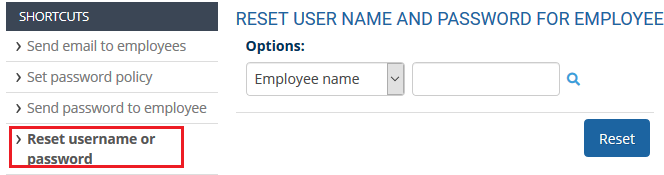
● Select the employee from the Options field and then click Reset. The User Name / Password window appears.
● Modify the username (if required) and type the new password.
Suggested Links
- Setup Password Policy
- Send Password to Employees
- Forget Password
- Setup, View and Edit Email Templates
- Navigation in Empxtrack
- Multiple Upgrade Options in Empxtrack
- Setup Global Groups
- Setup Access Controls
- Manage Workflows
- Setup Skills and Competencies
- Setup Company Information
- Time Settings
- Upload Employee Data
- Upload Reporting Relationship Data
- Setup HR Admin
- Setup Roles
- Masquerade as another employee
- File Validation Utility
- Open CSV File
- Save CSV File
- Advanced Search





