 Skip to content
This help page on set password policy, provides a brief description on how Empxtrack allows setting up of password policy for employees and reminds them to change their system passwords from time to time.
Note: Empxtrack provides two-factor authentication to prevent data breaches and avoid security risks.
To Set Password Policy, you need to:
● Log into the system as an HR Admin/ HR Manager.
● Click on Product configurations. In the Employee management section, click Employee communication.
● Click on Set Password Policy tab.
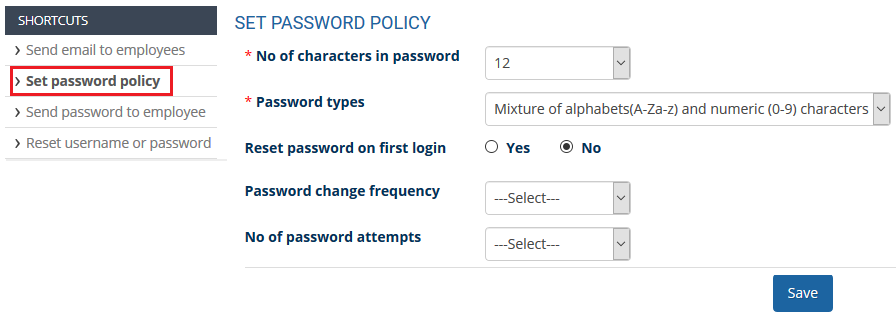
● Fill in the required fields and Save. The password policy is saved and a message suggesting the same appears on the screen.
Suggested Links
- Send Password to Employees
- Forget Password
- Reset Password
- Setup, View and Edit Email Templates
- Navigation in Empxtrack
- Multiple Upgrade Options in Empxtrack
- Setup Global Groups
- Setup Access Controls
- Manage Workflows
- Setup Skills and Competencies
- Setup Company Information
- Time Settings
- Upload Employee Data
- Upload Reporting Relationship Data
- Setup HR Admin
- Setup Roles
- Masquerade as another employee
- File Validation Utility
- Open CSV File
- Save CSV File
- Advanced Search





