 Skip to content
Empxtrack provides pre-configured email templates and gives flexibility to setup, view and edit email templates. You can communicate with employees by sending messages using this functionality.
Watch the video on how to setup, view and edit email templates
To configure email templates, follow these steps:
● Login to the system as an HR manager/ HR admin.
● Click on Product configurations.
● Under Setup masters, click on Setup email and letter templates link. A new page appears with pre-configured email and letter templates.

Add a New Template
● Click on the Add email template button or Add letter template to create a new template.
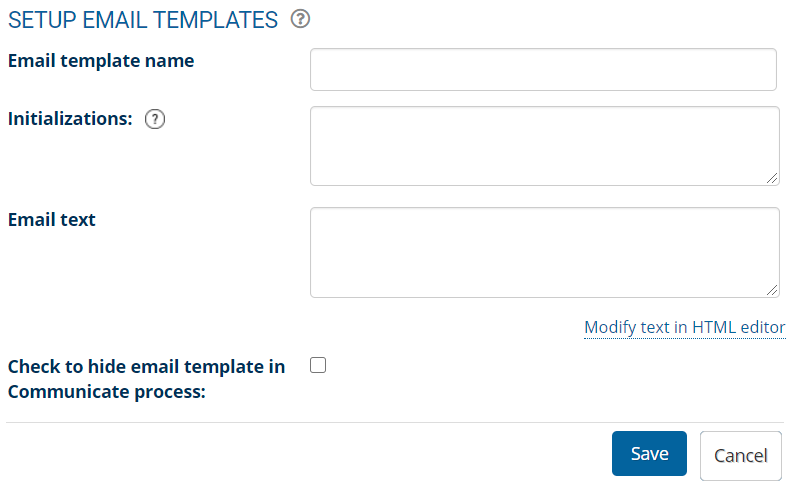
● Click on the Edit icon corresponding to any template to modify the existing template.
● Once all changes are done, click the Save button.
Employee Communication
To send a message to multiple employees, follow the steps:
● Login to the system as an HR manager/ HR admin.
● On the Homepage, click on the Product configurations tab.
● Under Employee management, click on the Employee communication link.
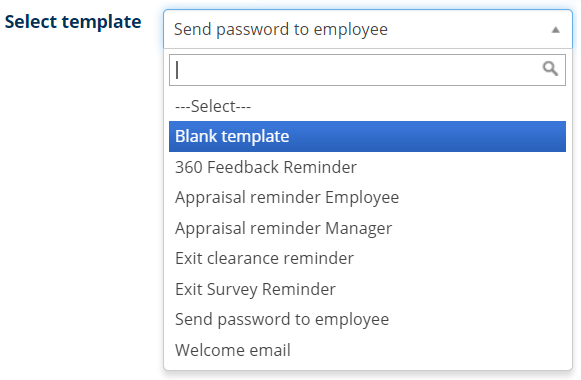
● From the Select template dropdown, you can either select an existing template or choose Blank template to write the message yourself.
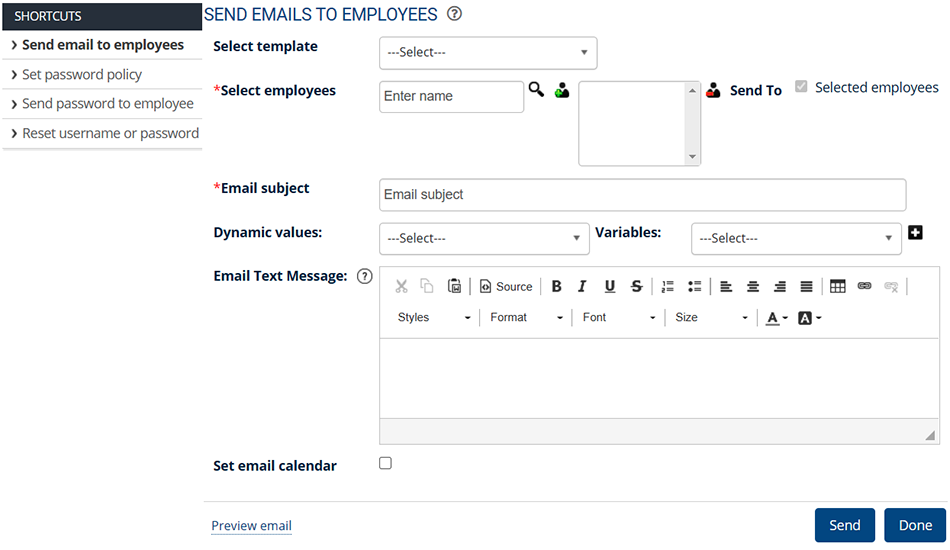
● Select all the employees to whom you want to send the message. You can also click on Advanced search/Find icon to find specific employees.
● Fill in the required fields. Click on the Preview email link to view the actual format.
● Click the Send button to share the message with all employees.
Suggested Links
- Setup Password Policy
- Send Password to Employees
- Forget Password
- Reset Password
- Navigation in Empxtrack
- Multiple Upgrade Options in Empxtrack
- Setup Global Groups
- Setup Access Controls
- Manage Workflows
- Setup Skills and Competencies
- Setup Company Information
- Time Settings
- Upload Employee Data
- Upload Reporting Relationship Data
- Setup HR Admin
- Setup Roles
- Masquerade as another employee
- File Validation Utility
- Open CSV File
- Save CSV File
- Advanced Search





