 Skip to content
Empxtrack allows change of employee who is handling HR Admin role. Once you start using the application, you can setup HR Admin and assign rights to any employee in the organization. By default Empxtrack provides HR privileges to the user that enrolls for the product.
Note: The steps mentioned below are of Empxtrack BYOH products.
To setup HR Admin, you need to:
● Log into the application.
● Go to the Product configurations and click Change HR Admin link under Employee Management section.

● Select an option from the dropdown.
● Type the name of the employee to whom you want to provide HR Manager/ HR Admin rights and click Select Employee.
● A confirmation message appears on the screen.
As soon as you click OK, you are logged out from the application.

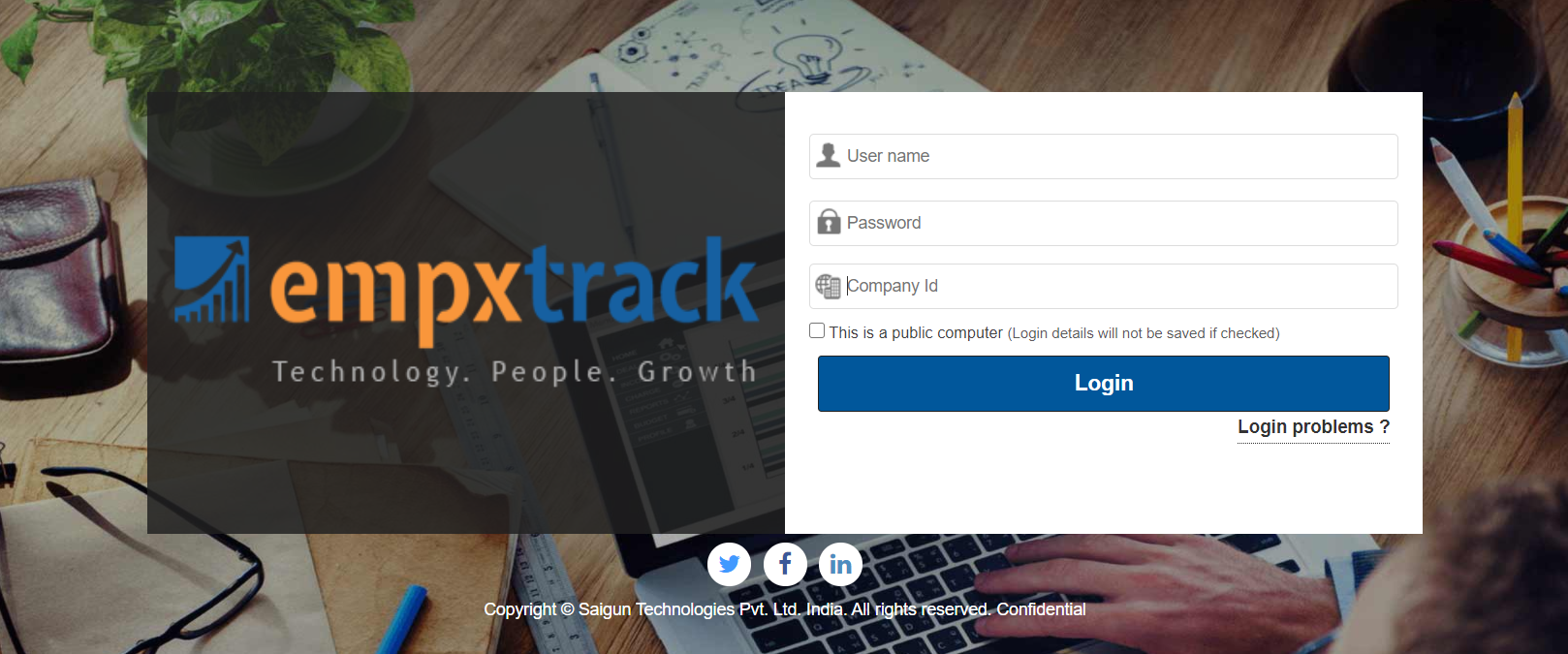
● The login page appears where you can now enter the login credentials to sign in to the application.
● The HR Admin has now changed and the privileges are given to the selected employee (Adam). Masquerade as Adam to view the functionality of HR Admin role and perform required tasks.
View steps to Masquerade as another Employee.
Suggested Links
- Setup Password Policy
- Send Password to Employees
- Forget Password
- Reset Password
- Setup, View and Edit Email Templates
- Navigation in Empxtrack
- Multiple Upgrade Options in Empxtrack
- Setup Global Groups
- Setup Access Controls
- Manage Workflows
- Setup Skills and Competencies
- Setup Company Information
- Time Settings
- Upload Employee Data
- Upload Reporting Relationship Data
- Setup Roles
- Masquerade as another employee
- File Validation Utility
- Open CSV File
- Save CSV File
- Advanced Search





