 Skip to content
This help page demonstrates steps to assign salary structure to employees. If any change is made to a salary structure, it needs to be reassigned to employees, or edited for the employees to reflect the changes.
Empxtrack allows creation of multiple salary structures in the system. The system provides a default salary structure that is non editable and is assigned to employees (by default) when no custom salary structure is defined.
Watch the video on how to assign salary structure to employees
To assign a salary structure to employees, you need to:
● Log into the system as an HR Manager.
● On the Dashboards page, go to Role and features menu  and click View employees. All the employees in your current span appears on the screen.
● Click on the profile image of an employee whom you want to assign salary. The menu appears where you can click the View full profile.
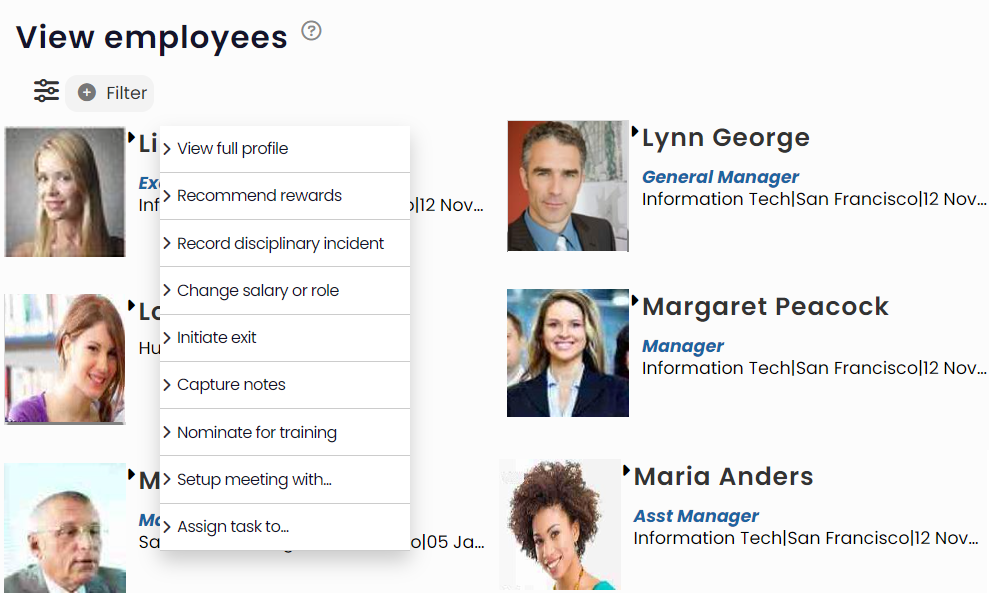
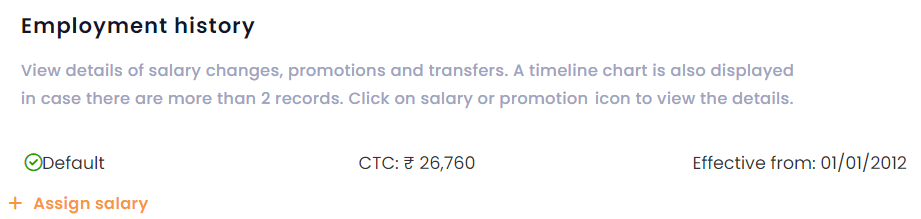
● The employee profile appears. Go to Employment history section and click Assign salary.
● Alternatively, you can go to Role and features menu and click Payroll. Under Payroll options, click Setup salaries for employees.

● The page displays the current salary structures for employees and also show employees whose salary structure is not assigned.
● Under Actions, click Edit salary to assign salary structure to a specific employee whose CTC and Effective Data fields have no value.
● Select any salary structure from Salary structure name dropdown. For this employee, Salary Structure 1 is selected from the dropdown.
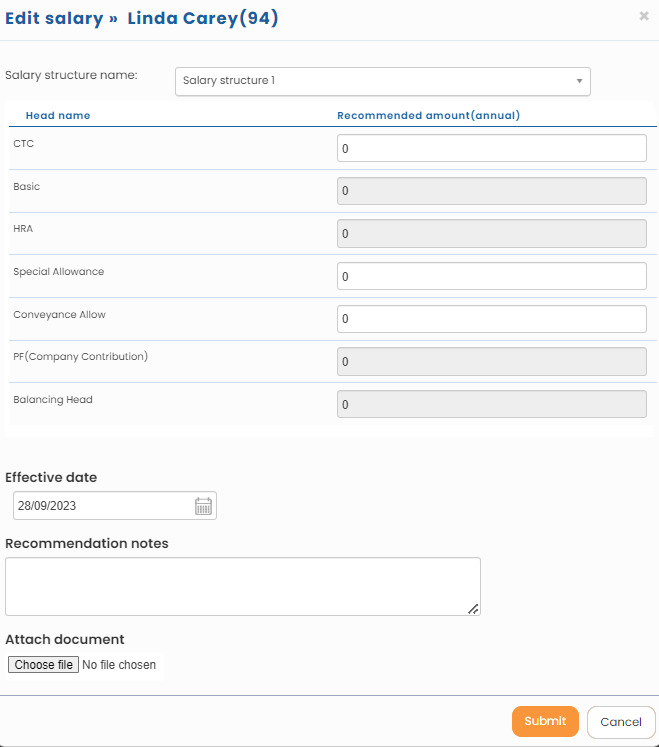
● The window displays a default salary structure, which is non editable and is used for the employees by default, if a custom salary structure is not defined in the system and assigned to employees.
● The values in all the salary heads appear automatically when a specific salary structure is selected. You can modify the values later, if required. Mention the recommended amount and it divides the salary into various heads. Balancing head is given to put the remaining amount if it is not mentioned in any of the salary heads.
Note: In Empxtrack Eazy Payroll, CTC and Balancing head are not shown. Only salary heads like Basic, HRA, Special allowance, Conveyance allowance and more are given.
● Mention the Effective date, Recommendation Notes and Attach a document (if required). Recommendation Notes and option to Attach a document is available in the paid version of Empxtrack. Click Submit.
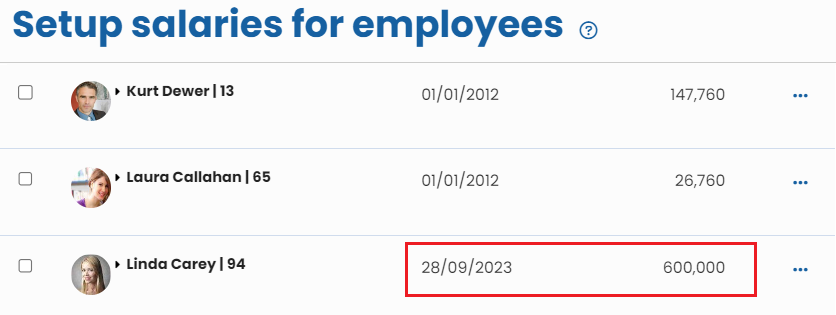
● A confirmation window appears to ask if you wish to save the changes and send for approval. Click OK. The salary structure is successfully assigned to the selected employee and you can view the values of CTC and effective date.
Suggested Links
- Payroll Configurations
- Setup Payroll Variables
- Setup Variables for Payroll Reports
- Setup Salary Structures
- Add Salary Heads to a Salary Structure
- Upload Salary Structure
- Upload Past Salaries for Employee
- Download Employee Salaries
- Setup Investment Declaration
- Configure Company Settings for Payroll
- Design Pay Slip
- Setup Claim Variables





