 Skip to content
Empxtrack provides a functionality to setup claim variables. This functionality allows employees to claim for their allowances that they receive as a part of their CTC.
To setup claim variables, you need to:
● Log in as an HR Manager.
● Click on Product configurations. Under Payroll Settings, click Configure Payroll. Click on the Payroll Variables tab.
● Select Salary/Earnings variables by clicking on the Salary/Earnings.
By default, the Salary/Earnings section displays the Active variables.

● To setup claim variables click Not being used link to view the Salary/Earning variables that are inactive. A list of Inactive Salary/Earning variables appears. You can select from a range of variables from:
a. Non taxable accrual 1 (out_sal_non_taxable_accrual1) to Non taxable accrual 5 (out_sal_non_taxable_accrual5): For claims that get accrued over a period of time.
b. Non taxable allow 1 (out_sal_non_taxable_allow1) to Non taxable allow 15 (out_sal_non_taxable_allow15): For claims that do not get accrued and need to be claimed immediately.
● Select Non Taxable Accrual 1 variable from the list. The edit section for the variable appears.
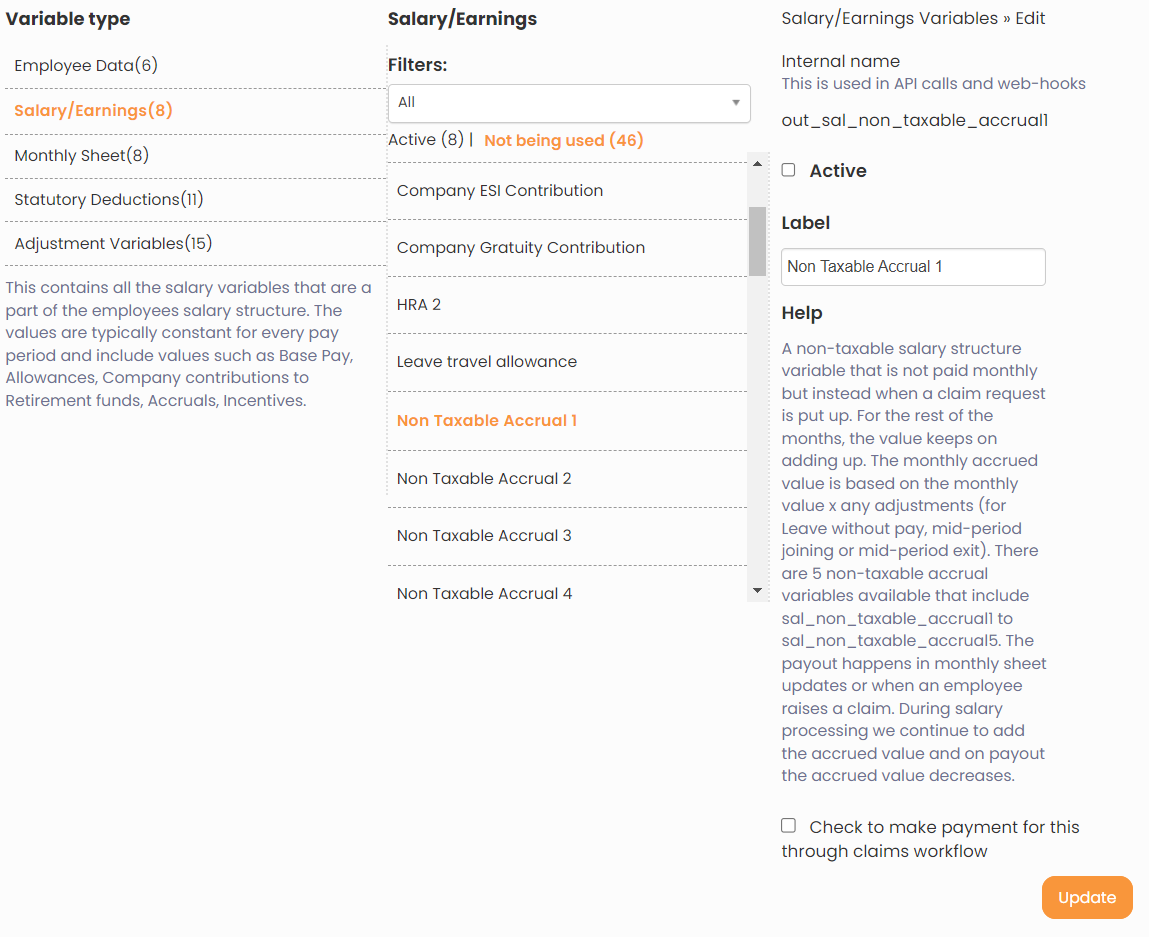
● Modify the Label name of the variable to the desired claim variable name.
● Select Active checkbox to make the variable active.
● Select Check to make payment for this through claims workflow checkbox to allow the claim workflow to be used for the variable.
● The related options appear. In this case, the Payment/Accrual options section appears. The section displays two options:
- Full monthly payment of applicable amount
- Payment of claimed amount only
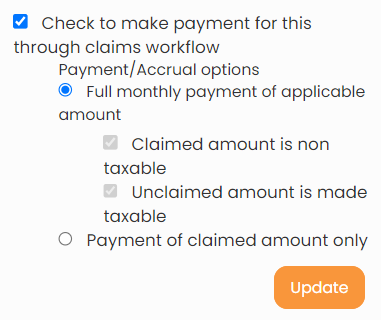
● Click Update. You have set up the claim variable successfully. It is now active and available to add to the salary structure where you want to use it.
Suggested Links
- Payroll Configurations
- Setup Payroll Variables
- Setup Variables for Payroll Reports
- Setup Salary Structures
- Add Salary Heads to a Salary Structure
- Assign a Salary Structure to Employees
- Upload Salary Structure
- Upload Past Salaries for Employee
- Download Employee Salaries
- Setup Investment Declaration
- Configure Company Settings for Payroll
- Design Pay Slip





