 Skip to content
A manager evaluates subordinates once the appraisals are submitted to them. A manager can evaluate and rate selected employees together on the same form or rate one employee on all the forms. Evaluating multiple team members on the same form and on the same attribute allows comparison of the performance of all the team members in one go. This help page demonstrates steps to evaluate a team member at a time.
Note: The steps mentioned below are of Empxtrack Enterprise product.
Watch a video on how managers complete appraisal for their team members
To evaluate a team member, you need to:
● Log in to the system as a Manager.
● From the Role and Features menu , click on Appraisals. Filter the appraisal records by selecting the relevant Time period, Appraisal tag and Groups. To learn how to filter appraisal records, click Filter data and follow the steps.

● The page displays appraisals of your team members for the current time period.
● To evaluate an individual, click Evaluate selected, after selecting the employee. A page appears that display a list of appraisal forms. By default, first form i.e. Introduction form is open that displays general help instructions to fill appraisal forms.

● Click on each of the forms listed under Appraisal forms to rate and evaluate the team member.
● Evaluate the team member on all the forms (number of appraisal forms depends upon the appraisal plan).
● The Final score form displays the calculated scores for the individual forms on the appraisal. You can only view those forms that are scorable.
● The scores are based on a scale of 1 – 100 and each form’s weight and individual score calculation determine the Overall score calculated for the appraisal.
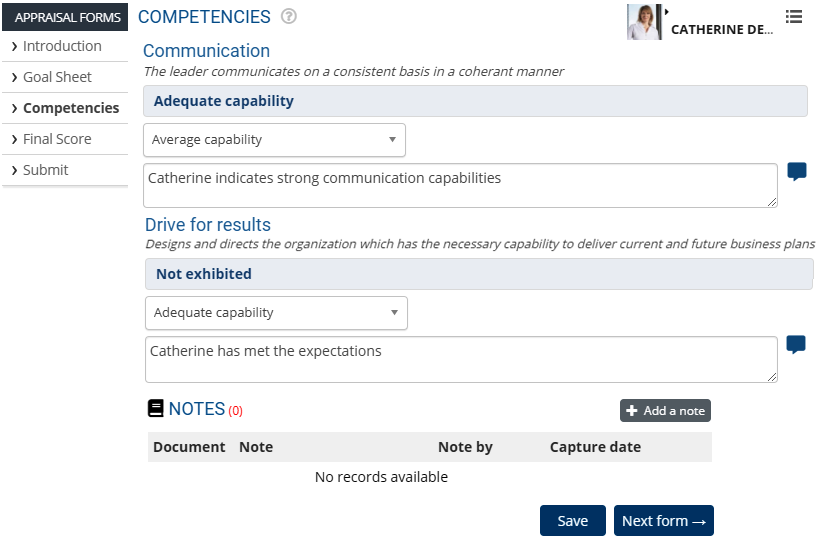
● Click Save.
● Click Next form and the Submit page appears
● Click Submit.
● The form is successfully submitted to HR, depending upon the workflow defined for the appraisal.
Corrective Action Plan
Manager can create a corrective action plan for employees when they are unable to meet expectations. A corrective action or Performance Improvement Plan is a formal process to document employee’s inefficiency to achieve goals and an easy approach to help them meet their objectives.
● Manager can initiate a new corrective action by following the path: On the Homepage, click on the Corrective action tab >> Click Initiate corrective action link >> Select an employee and start a PIP for them. Once the PIP is created, manager can add specific goals and a timeline for their achievement in the PIP and submit the same. Based on the approval process, the corrective action will be created.
● On the chosen next follow-up date, you will be reminded to Capture follow-up notes and give your feedback on the goals. Continue the corrective action by setting up a new follow-up date, mark it closed or even initiate an exit for the employee.
● HR manager can view status of all the corrective action plans for a specific time period. Follow the path: Login as an HR manager >> click on the Corrective action tab on the Homepage >> Multiple corrective action plans and their status can be viewed on the page.
- Setup Performance Appraisal Plans
- Initiate Appraisal
- Change Appraisal State
- Configure Performance Potential Settings
- Appraisal-Employee Access
- Manage Team Appraisal – Filter Records
- Print Appraisal
- Manager Appraisal Dashboard
- Create a new Rating Scale





