 Skip to content
This help page provides step by step instructions to demonstrate two functionalities: Setup Polls and Setup Thoughts. HR can configure these to solicit employee feedback.
Note: The steps mentioned below are for the Empxtrack Enterprise product.
To setup polls and thoughts, follow the steps:
Create Polls
Polls are used to solicit feedback from employees. Capture different kinds of inputs from employees daily, such as the service of the new coffee vendor, the ease of use of the new HR System and so on. Polls are visible on the poll widget on the Dashboards page of the application.
Note: While you can create multiple polls, only 1 can remain active at any given time. Each poll can be associated with multiple choices, and you can run a report to view the responses of employees. Analysis of polls helps to understand what your employees want and enables you to keep them consistently engaged.
To setup a poll, you need to:
● Log into the system as an HR manager.
● On the Dashboard page, click on Product configurations. In the Employee Portal Setup, click on the Manage polls.
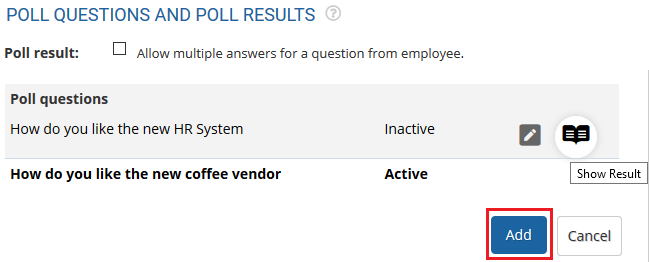
● Click Add. The Poll questions and poll results page appear.

● Enter the poll question and select answer options.
● Click (+) icon to add a new option, if required.
● Select Is the poll active checkbox to activate the poll.
● Click Save. The poll is successfully created, and a message suggesting the same appears.
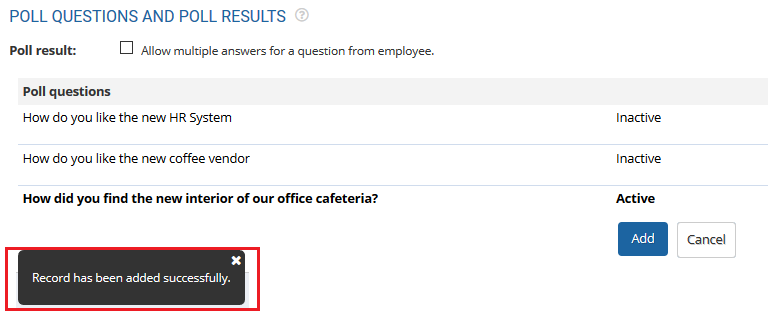
● Click on Show Result under Actions to check the poll results.

Setup Thoughts
To setup thoughts, you need to:
● Log into the system as an HR manager.
● On the Dashboard page, click on Product configurations. In the Employee Portal Setup, click on the Thought for the day link. The page appears.

● Click Add to add a thought.

● Fill in the sequence number of the thought in the Thought no field.
● Enter the thought that you want to share.
● Click Save. The thought is successfully created.
Learn more about Empxtrack Self Service Portal
Suggested Links





