 Skip to content
Empxtrack offers a platform to make important announcements and post feeds. Social Feed allows employees to view updates on rewards, work anniversaries, birthdays, promotions, and new joinees.
Through Social Feed, employees can make a public announcement or add a feed about themselves or others. Each feed goes through an approval process. This gives a platform to employees to encourage interactions and boosts employee engagement.
Note: The steps mentioned below are for the Empxtrack Enterprise product.
Setup Social Feed
To set up social feed, you need to:
● Login to the system as an HR manager.
● On the Dashboards page, click on Product configurations.
● In the Employee Portal Setup, click on the Setup Social Feed link.

● You can select the checkboxes associated with each Social Feed category. To allow employees to post a social feed, select the checkbox corresponding to Allow employees to suggest new feeds.
● Click Save.
Add a Feed
A Social Feed can be added in just a few clicks.
Employees or HR can add a feed. If an employee adds a feed, it goes through an approval process as per the company workflow. For HR, the feed can be added with direct approval.
Any information related to the company can be published as a Public announcement. A personal achievement or a congratulatory message for others can be added as a Feed about me or a Feed on someone else, respectively.
To add a feed, you need to:
● Login to the system as an Employee or HR.
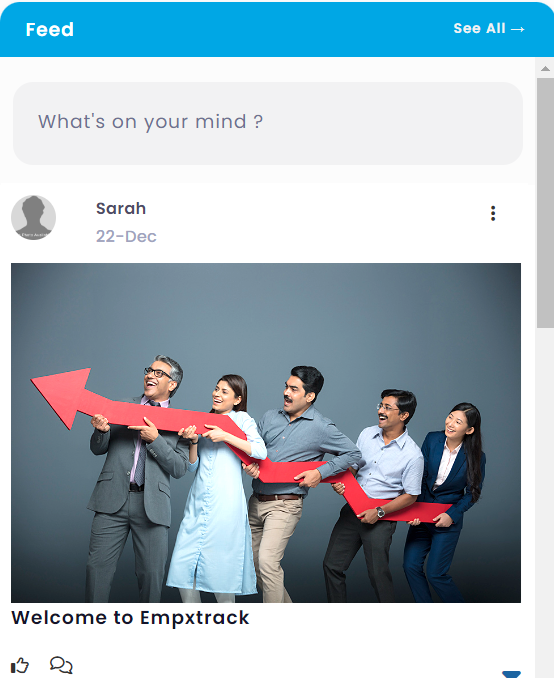
● On the Dashboards page, go to the Social feed section and click What’s on your mind?.
To add a new feed, select the type of feed that you want to post. Three types of feeds are available:
- Public announcement – This may include information related to company events, motivational messages, client appreciation, birthdays, work anniversaries and more.
- Feed about me – This refers to adding a personal or professional achievement or an important life event about themselves.
- Feed on someone else – This refers to adding a personal or professional achievement or an important life event about colleagues, peers or juniors. When selecting a Feed on someone else, you need to provide the name of that employee.
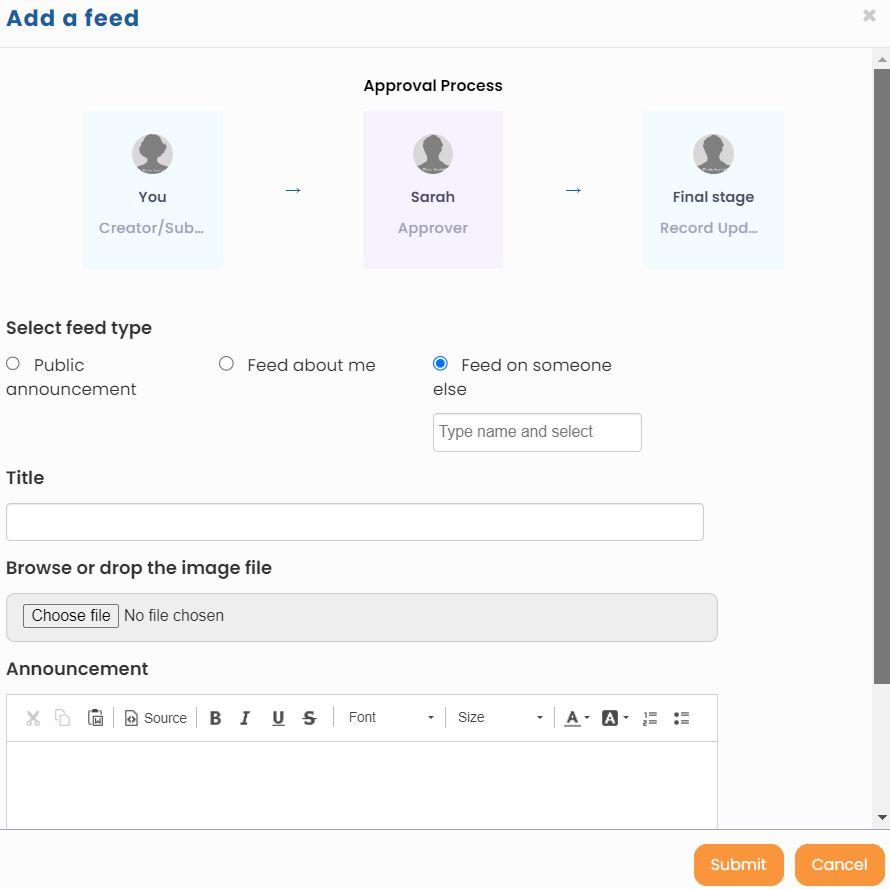
Note: Approval workflow on top does not show if an HR manager adds a Feed.
● Provide a short title.
● Click the Choose file button to browse a file or image to be shown on the feed.
● Write a message in the Announcement textbox to convey more about the event.
● Click the Submit button.
Once the feed gets approved, it will show in the Social Feed section to all the employees in your organization.
Suggested Links





