 Skip to content
Empxtrack Exit Management tool allows Employee, Manager and HR Manager to initiate the exit process. The steps to initiate exit by each role are explained below.
Note: If you are not using Empxtrack Exit Management tool and using some other Empxtrack product, then refer to this help page for initiating the exit of an employee.
To initiate exit process, follow these steps:
Initiate Exit as an Employee
● Log in to the application as an Employee.
● Go to the My Profile section and click on Submit resignation.

● The Exit info page appears, showing an approval workflow.
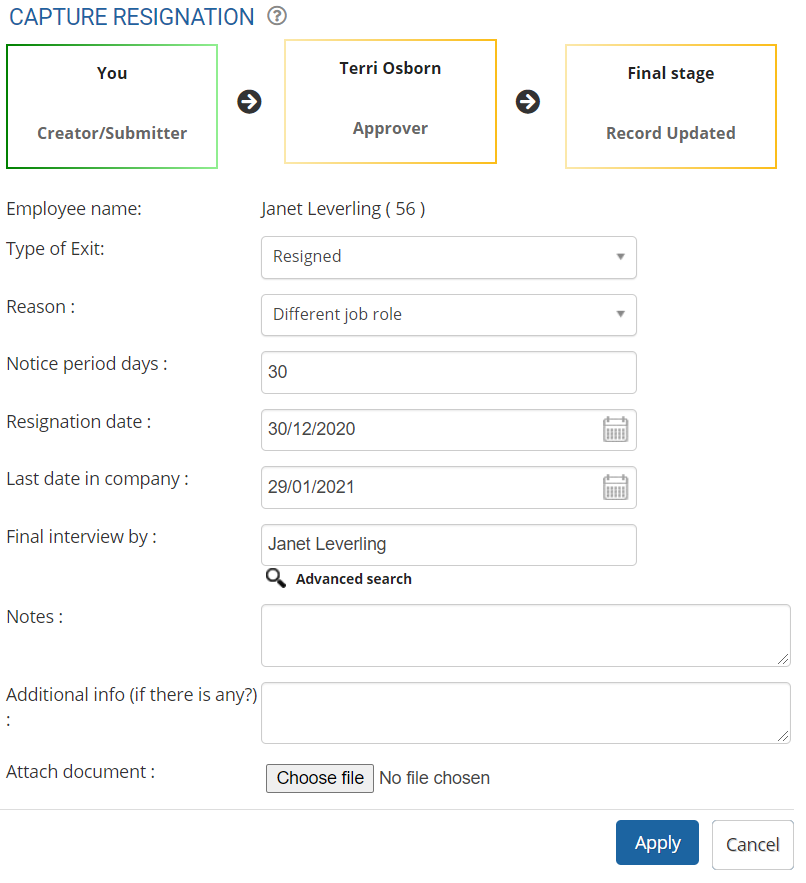
● Fill in the details like type and reason for exit, date of resignation, last working day, final interview, and remarks in the respective fields.
● Click Apply to submit the exit request to the approver (depending upon the workflow).
Start Process as a Manager
● Log in to the application as a Manager.
● Click on the Employee exit link from the Roles and features  menu.
menu.
● Scroll down the page and click Initiate exit.

● The Initiate exit dialog box appears, where the manager can select the employee whose exit needs to be initiated. Type the name of the employee in the search box, select the employee, and click Select employees.

The Capture Resignation page appears.
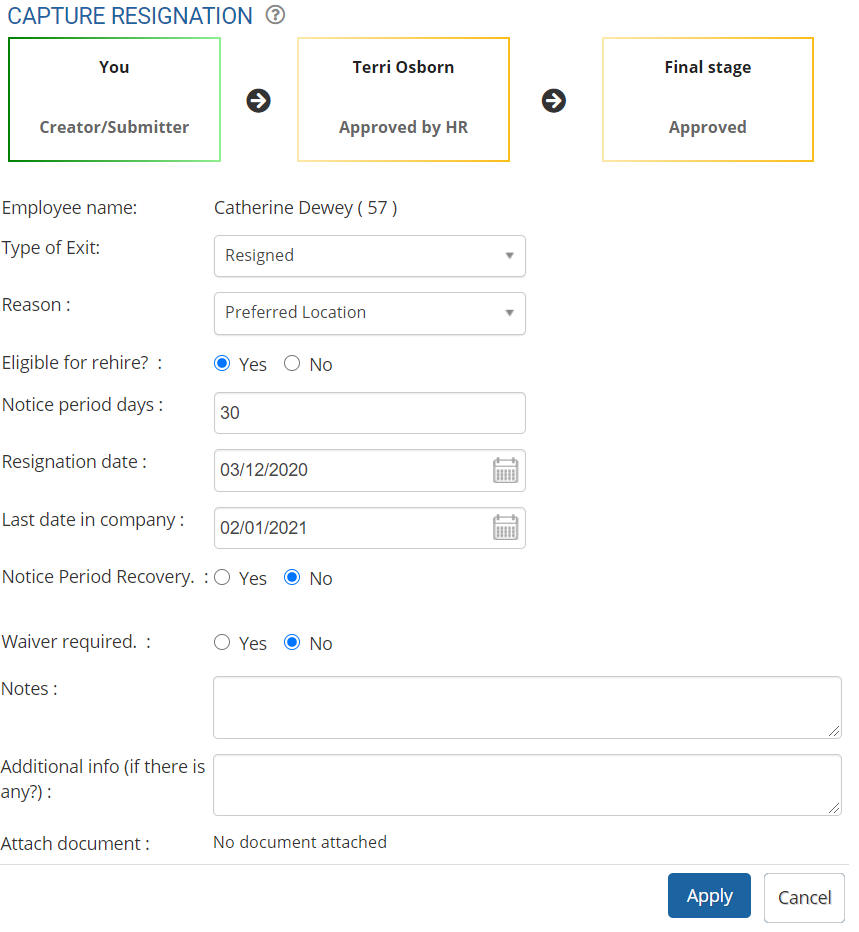
● Fill in the details like type and reason for exit, eligible for rehire, date of resignation, and last working day in the respective fields.
● Click Apply to submit the exit request to the approver (depending upon the workflow).
Initiate Exit as an HR Manager/ HR Admin
● Login as an HR Manager.
● Click on the Employee exit link from the Roles and features menu.

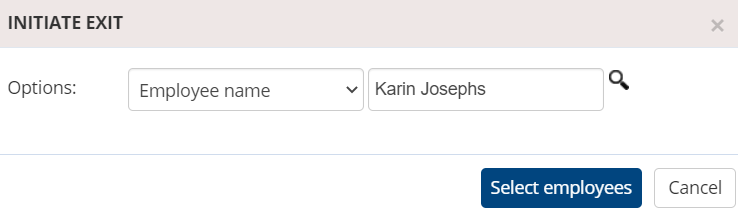
● The Initiate exit dialog box appears, where the HR Manager can select the employee whose exit needs to be initiated. Type the name of the employee in the search box, select the employee, and click Select employees.
● The Capture Resignation page appears, where you can fill in details like type and reason for exit, eligibility for rehire, date of resignation, last working day, exit interview details, and remarks in the respective fields.
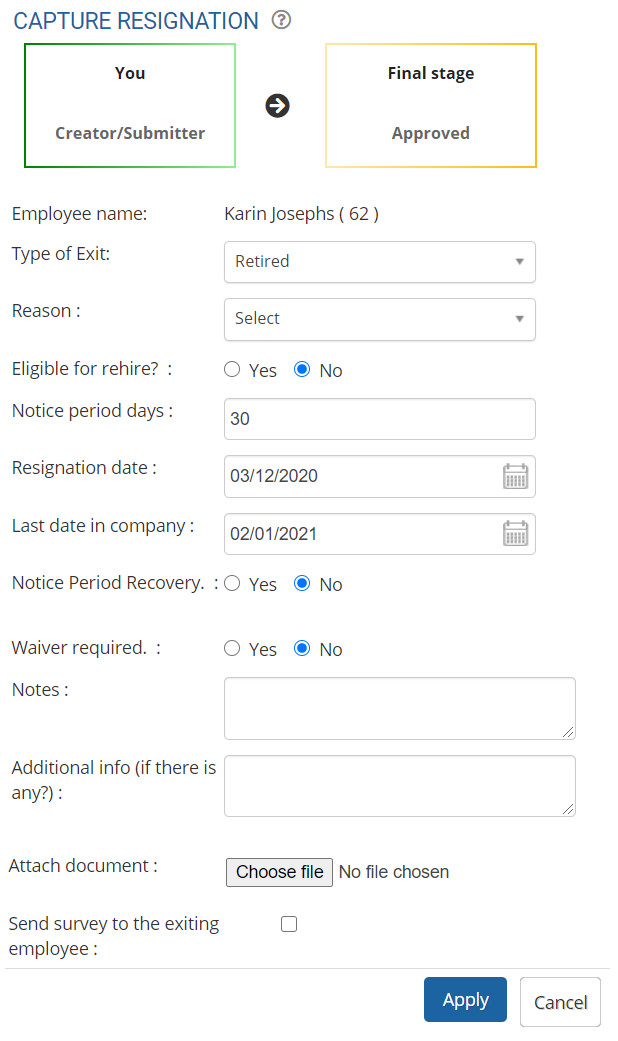
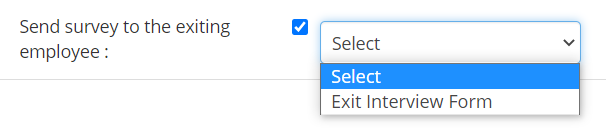
● Select the checkbox Send survey to the exiting employee if you wish the employee to fill in a survey form about their experience in the organization, and give a reason for their exit. This helps in exit analysis. From the Select dropdown, select a suitable exit survey.
● Click Apply to submit the exit request to the approver (depending upon the workflow).
Learn more about Empxtrack Exit Management
Suggested Links





