 Skip to content
Configure HRIS fields page helps in customizing Empxtrack system to map company requirements. Configuration of HRIS fields allows addition, removal and renaming of fields.
Note: The steps mentioned below are of Empxtrack Enterprise product.
To configure HRIS fields, you need to:
● Log into the system as an HR Manager or HR Admin.
● Click on Product configurations. Under the Employee Records Settings section, click on the Configure HRIS fields link.
You can configure the existing fields and add new fields as per your specific requirements. The variable type list displays two types of variables, Active and Inactive. The Active variables are the selected variables for the variable type Employee Data. These variables will be used capturing/ displaying employee data. The Inactive variables are the variables that are not used by the system.
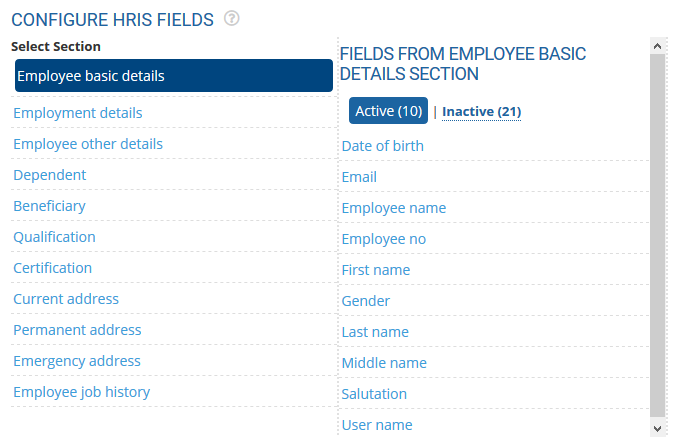
● Click on the Inactive fields to add new fields to the section. The activated fields automatically show up in reports, employee profile and upload/download formats and API with the labels that have been setup here.
Activate Inactive Variables
● Activate inactive variables that you want to use in your company by clicking the Inactive button.
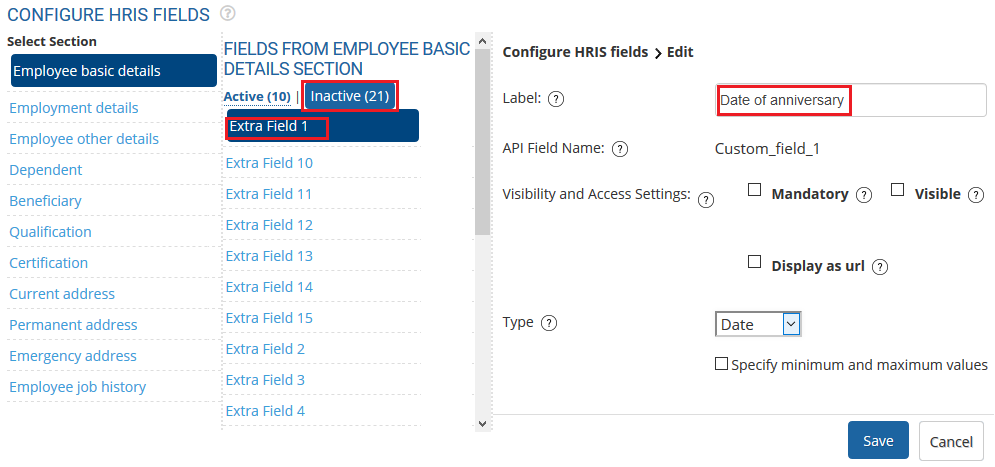
● Click on the variable that you want to activate.
● Modify the label of the variable by providing a new variable label in the Label text box, if required.
● Select the Visible checkbox to activate the variable and Save.
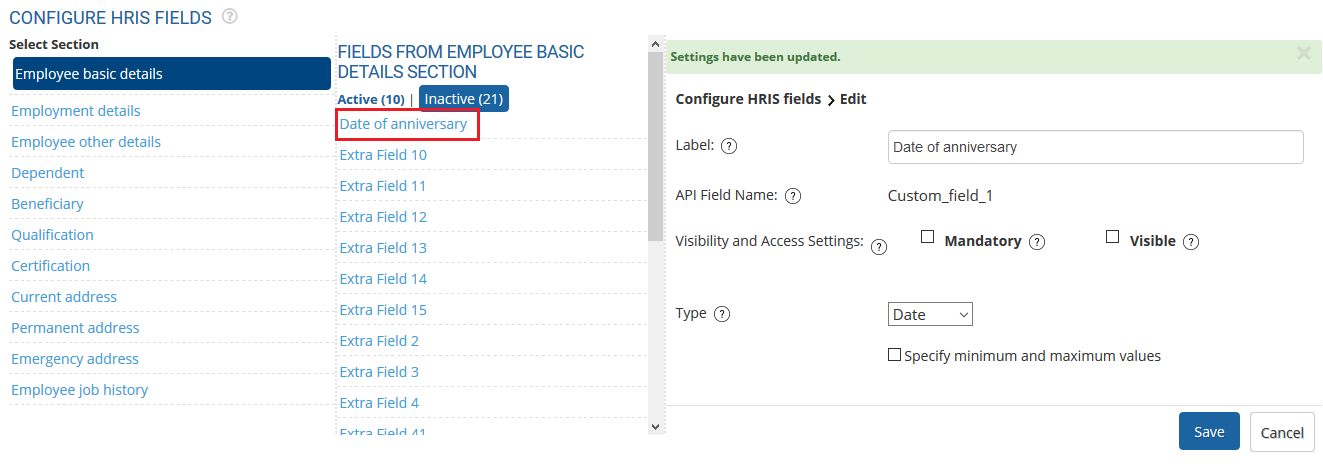
● The variable is successfully activated and a message suggesting the same appears.
● Click Active button to see the newly added variable added to Active variables list.
Deactivate the Active Variables
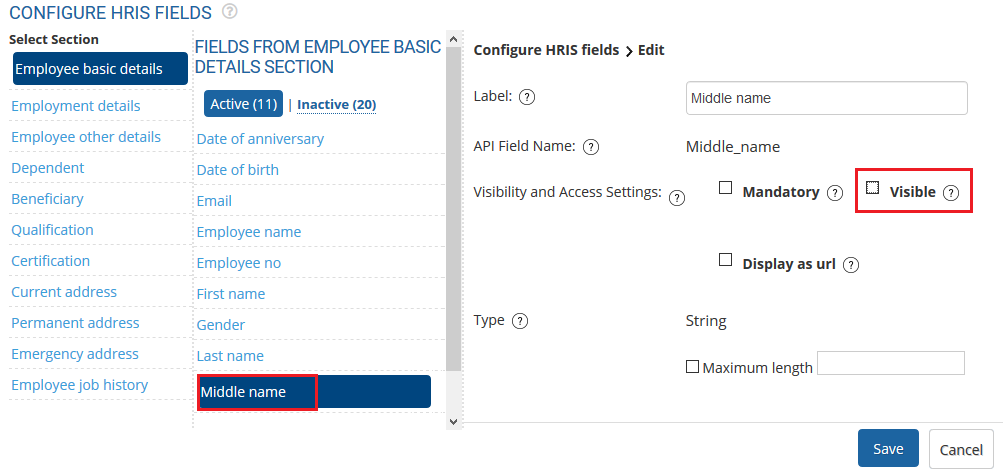
● Deactivate the active variables that are not required. Click Active button and go to the field that you want to make Inactive. For instance, we want to make Middle name as an Inactive field.
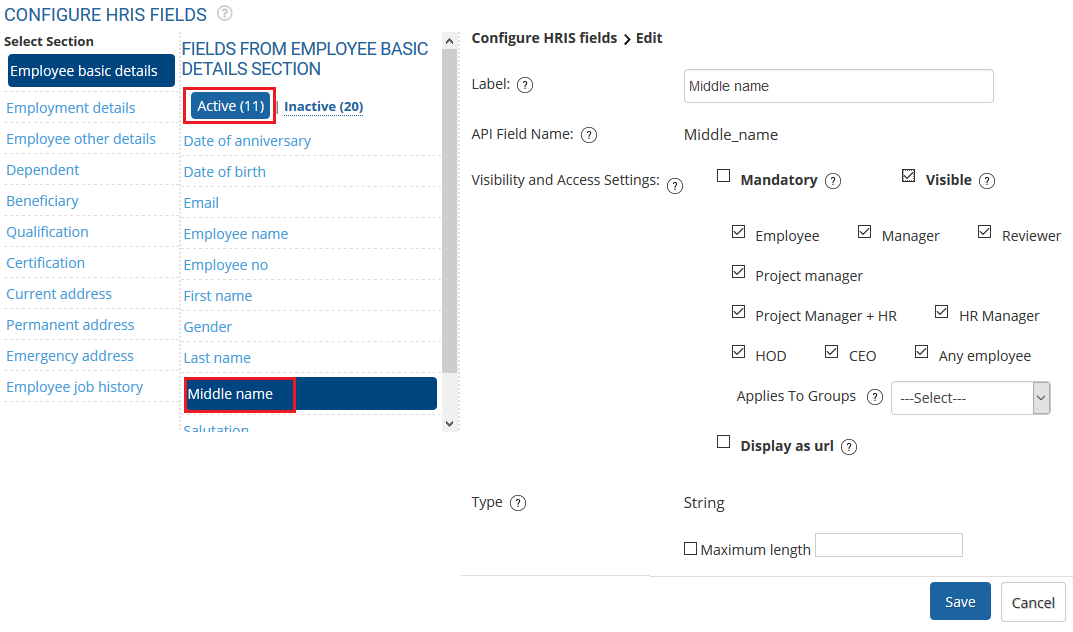
● Click Middle name and Configure HRIS fields > Edit section appears in the extreme right side of the page.
● Uncheck the Visible checkbox and click Save button.
Merge Personal and Career Profile of an Employee
Empxtrack gives the option to merge two sections – Employee personal data and career profile. Modify HRIS Settings to merge the profiles and view employee data in a single section.
Note: In Empxtrack Payroll and HR software, Personal and Career details are shown in Employee Data section. The fields are limited to represent personal and employment information. The functionality to merge these profiles is not available in Free Payroll. Upgrade to a paid version to avail this feature.
● Login to the system as an Administrator.
● Scroll down to Setup miscellaneous properties section and click HRIS link.
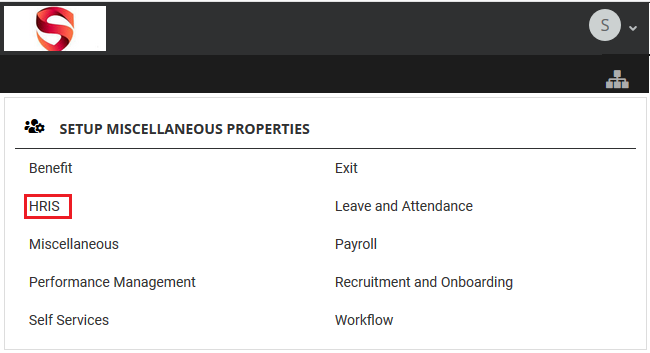
● The HRIS Settings page appear where you can manage multiple settings for HRIS module. The Administrator can change the settings by clicking Edit icon on right.
● Now go to Merge employee data and career profile and click the Edit icon.

● A dialog box appears Edit >> allow.careerProfile.inViewEditData where unit is written in the textbox. Change the value to Yes and click Save.
● To observe the change, login to the system as an HR Manager. From the quick access icons on the top, click Roles and features menu and hover the mouse on arrow next to the employee image, to view employee menu.
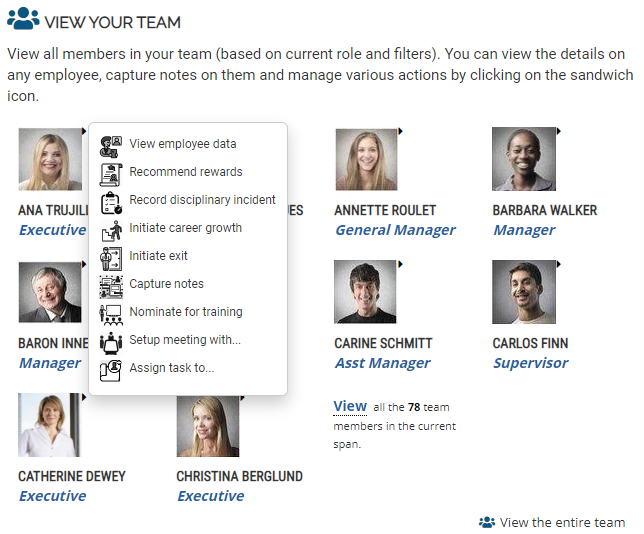
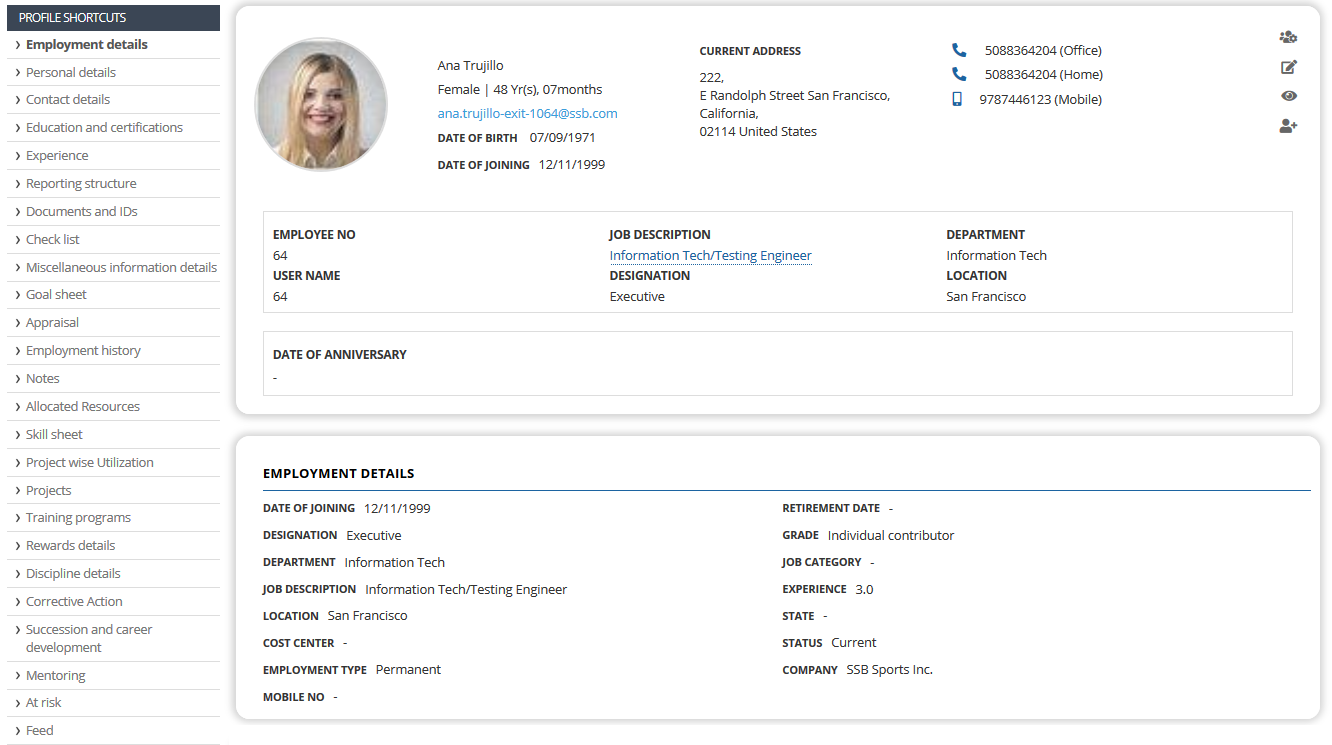
● Click View full profile option. All the details of an employee career and personal profile can be seen on this page.
Learn more about Empxtrack HRIS
Suggested Links





