 Skip to content
When employees quit the job and leave an organization, they are marked exited from the system.
Follow the steps below to mark an employee exited from Empxtrack system. However, if you are using Empxtrack exit management tool specifically, then follow the steps listed on this page.
Follow the steps below:
● Log in to the system as an HR manager.
● Click on the View employees widget on the dashboard or type the employee name on the search bar.
● Hover on the employee profile and click on Initiate exit on the side menu corresponding to the employee name whom you want to mark exited.

● Go to Employee Profile and click on the Mark employee exited icon.
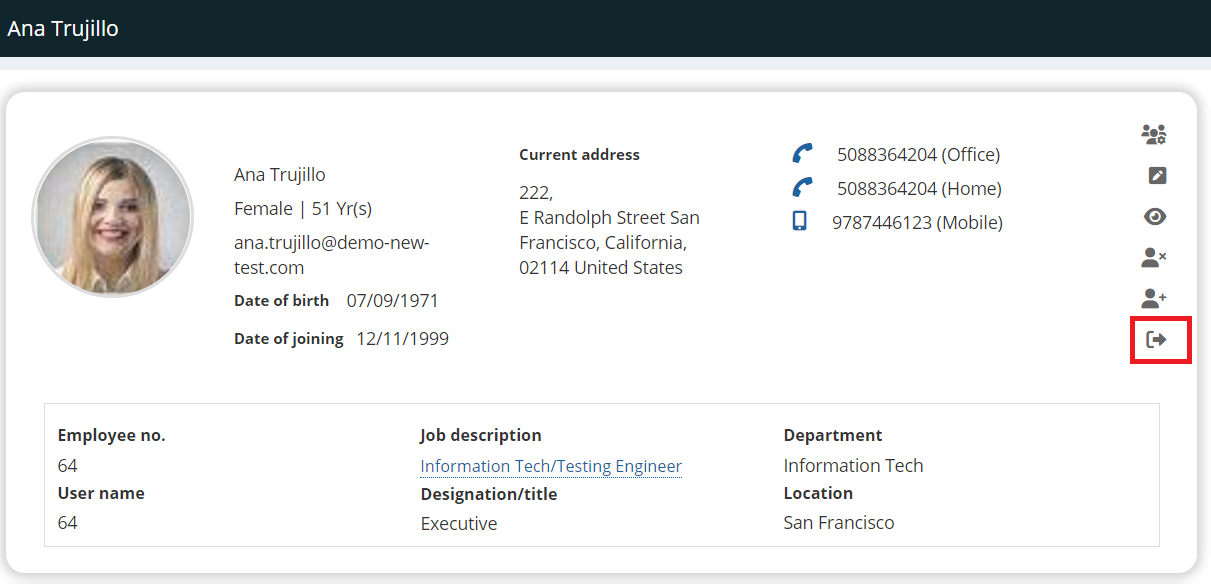
● Select the Type of exit and Reason. Then select Resignation date and the Last day in the company.


● Select the checkbox if you want to send the survey form to the existing employee. Select the Initiate Clearance Process.

● Click Confirm. Click on Submit clearance.

● A confirmation message for the same appears on the screen.

● Click on Mark employee exited and click OK on the confirmation message. The employee will be exited.

Learn more about Empxtrack HRIS
Suggested Links





