 Skip to content
Empxtrack allows upload of reporting relationship data that defines company hierarchy and setup approval workflows.
Note: The steps mentioned below are of Empxtrack Enterprise product.
To upload reporting relationship data, you need to:
● Log into the system as an HR manager/ HR admin.
● Click on Product configurations. In the Uploads section, click the Reporting Relationships link.

● Click on the  download sheet icon to download the CSV file that contains the format of the data to be entered.
● You can now open the file in MS Excel To know how to open the file in MS Excel, click Open CSV file.
● Save the file on your system and fill in the employee data without changing the columns.
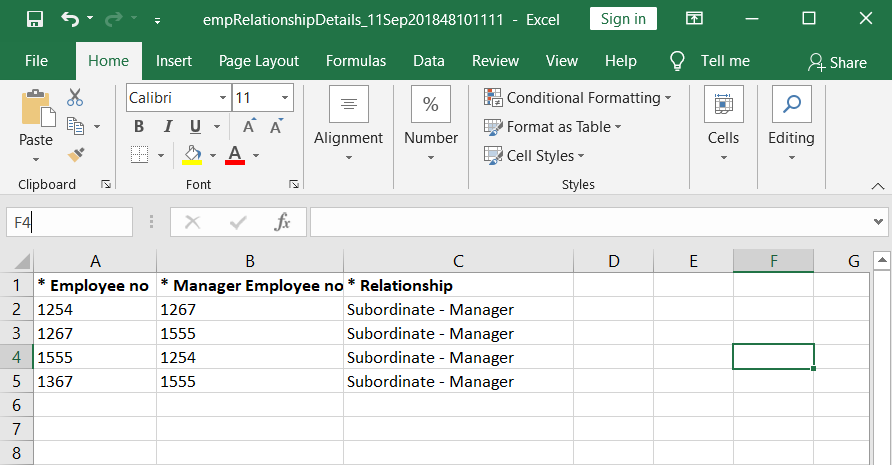
● Once the data is ready to upload, click Choose File to attach the file and then click Upload button.
● A dialog box Fields Selection Mapping appears where you can cross check and match that the selected field in the dropdown is the same as the field name. If the selected field does not match, click on the dropdown and select the required option.
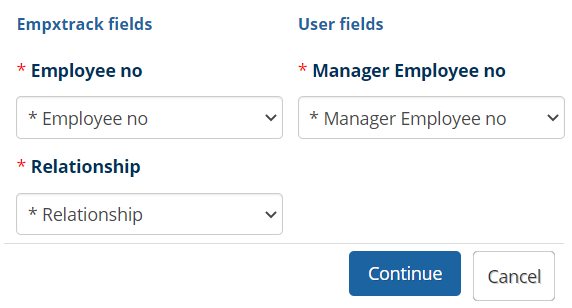
Note: In case you are using the same file which was downloaded, all fields would match automatically.
● Click on the Continue button and then Confirm the employee data post verification. Employee relationship data is successfully uploaded in the system.
Remember, this process is irreversible. Once the data is updated, you cannot reverse the changes.
Learn more about Empxtrack HRIS
Suggested Links





