 Skip to content
The Download Salary Data functionality allows you to download the salaries calculated by the system for all or selected employees. Other systems can use these salaries for any further processing.
To download employee salary data, you need to:
● Log into the system as an HR Manager.
● On the Dashboards page, click Product configurations. Under Payroll settings, click Download processed salaries.
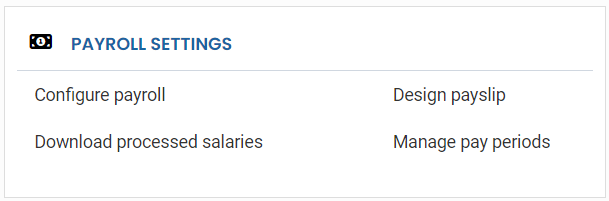
● Select the Financial year and the Pay frequency and then the Pay period for which you want to download the salary.
● Select All Employees if you want data of all the employees. Else select the Selected Employees option if you want to download the salary data of selected employees.
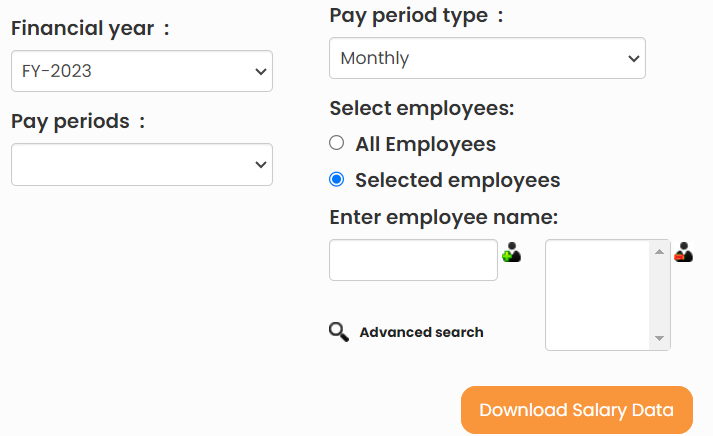
● Type the employee’s name in the search bar and then select the employee. Click on the Plus sign to select the employee. You can use Advanced Search option to search for employees.
● Click Download Salary Data. The salary data for the selected pay period is downloaded. View the details in the downloaded file.

Suggested Links
- Payroll Configurations
- Setup Payroll Variables
- Setup Variables for Payroll Reports
- Setup Salary Structures
- Add Salary Heads to a Salary Structure
- Assign a Salary Structure to Employees
- Upload Salary Structure
- Upload Past Salaries for Employee
- Setup Investment Declaration
- Configure Company Settings for Payroll
- Design Pay Slip
- Setup Claim Variables





