 Skip to content
A salary structure is a template that contains salary heads that may have formulas or dependencies among each other. Empxtrack supports multiple salary structures. A salary break-up, refers to assigning a salary structure to employees with specific values defined for each salary head. Each assignment is effective from a specified date which is used to calculate arrears automatically (if applicable).
The upload salary structure functionality allows you to upload the salary breakup and salary structure details of all the employees in one go. This functionality is useful when initializing Empxtrack for the first time to run payroll to calculate salaries thereafter. You can even upload new salary structure for employees post appraisal or mass salary increment.
Watch the video to view steps to upload salary structure for multiple employees
Upload Salary Structure for all Employees
To upload salary structures, you need to:
● Log into the system as HR Manager.
● On the Dashboards page, go to Role and features menu  and click Payroll. Process payroll page appears on the screen where you can see the Payroll options. Click on the Setup salaries for employees.
● Here you can upload salary structure for multiple employees in one go.
● Select the checkbox corresponding to the name of the employees whose salary structure is not assigned.
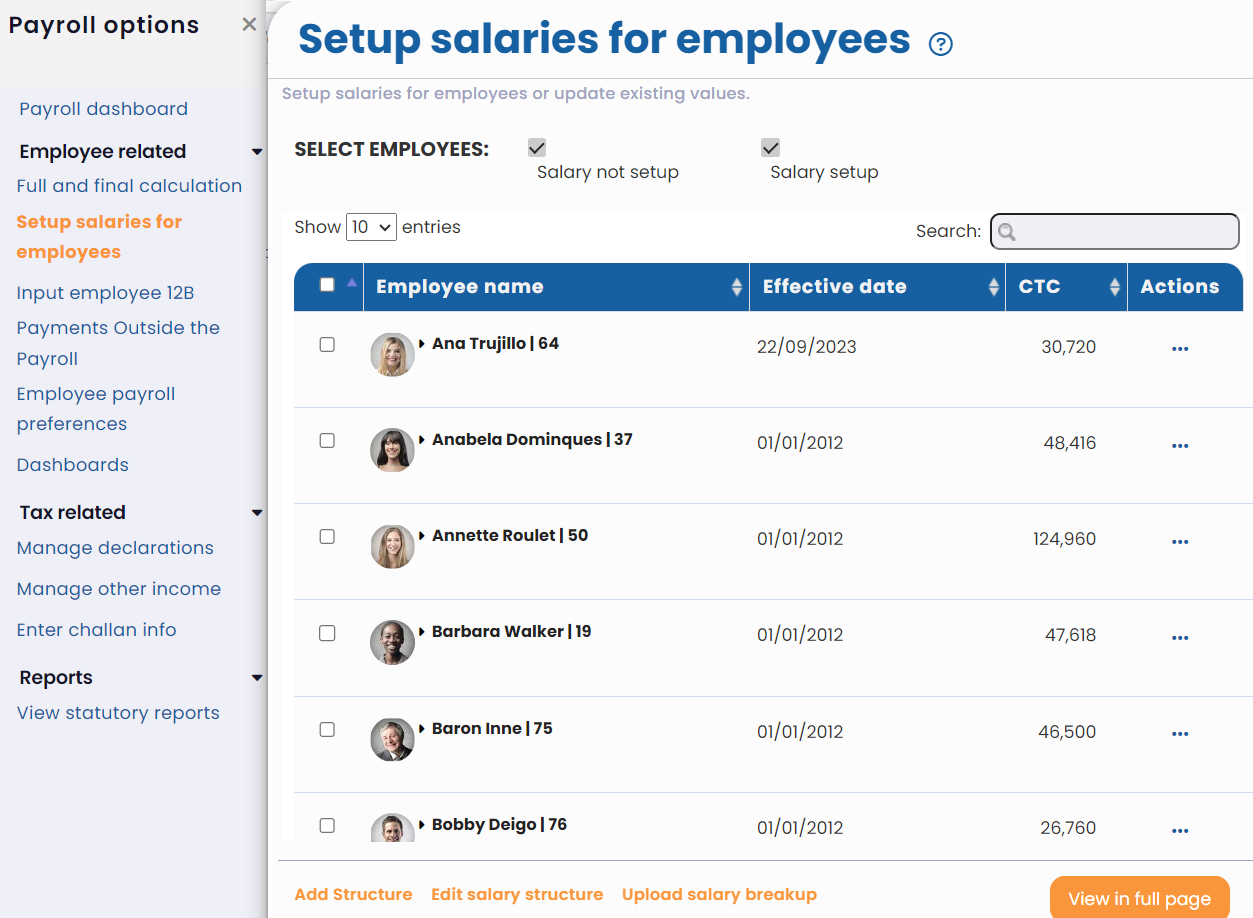
● Click Upload salary breakup link at the bottom of the page.
Download the Salary Structure File Format
● A new dialog box appears as shown. Select the preferred salary structure from the Select Structure dropdown for the selected employees.
● Click Download sheet icon shown in front of Download Sample Sheet in csv format.
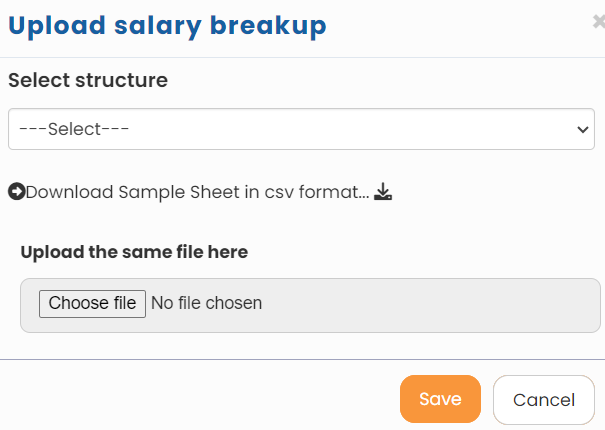
● Once the file is downloaded, you have the format in which the data needs to be put. You can now put the salary structure information in the file.

Note: Ensure that dates that you provide, appear in the format mentioned in the file. If dates do not appear in desired format, then right-click the date cell(s) in which you are providing dates and then select the correct date format so that date appears in <MM/DD/YYYY> format.
Upload the CSV File
● Once you have added the data of all the employees in the csv file, you can upload the file to Empxtrack system. Click Choose file and upload the file that you have filled with salary structure data.
● Click Save. The salary structure for selected employees is uploaded successfully.
Go through the detailed guide to know more about salary structures, their types, examples, formats, variable salary components and best practices to create pay structure.
Suggested Links
- Payroll Configurations
- Setup Payroll Variables
- Setup Variables for Payroll Reports
- Setup Salary Structures
- Add Salary Heads to a Salary Structure
- Assign a Salary Structure to Employees
- Upload Past Salaries for Employee
- Download Employee Salaries
- Setup Investment Declaration
- Configure Company Settings for Payroll
- Design Pay Slip
- Setup Claim Variables





