 Skip to content
Form 24Q is a statement that an employer needs to submit to the income tax department on a quarterly basis. Use Empxtrack to generate Form 24Q, which includes details of salaries paid and tax deducted by the company for its employees.
The system automatically generates the form 24Q in .txt file that you can validate using the File Validation Utility (a freely downloadable utility from the NSDL website), and after validation, the returns should be submitted to the department.
To generate the Form 24Q text file, you need to:
● Log into the system as HR Manager.
● From the Roles and features menu  , click Payroll. A new page appears where the Process Payroll tab is opened. Under Payroll shortcuts, click on View statutory reports.

Note: It is important to capture challans to generate quarterly returns and Form 24Q. You can capture challans once you have paid taxes and generated the challan information. Learn how to Capture Multiple Challans.
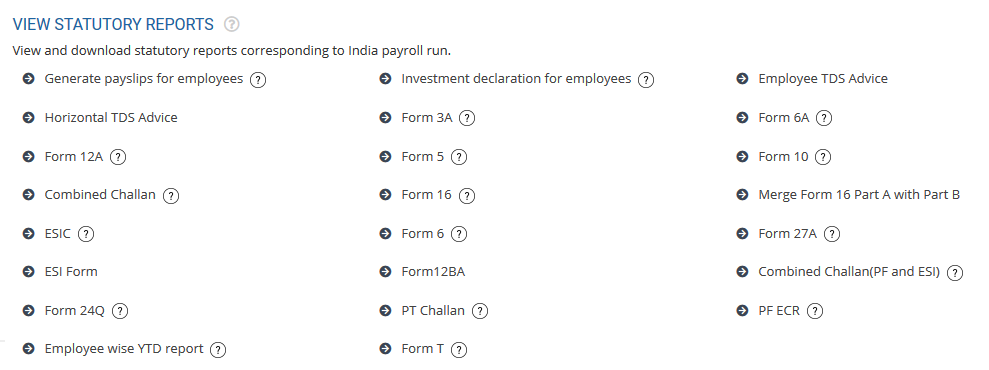
● Click Form 24Q link.
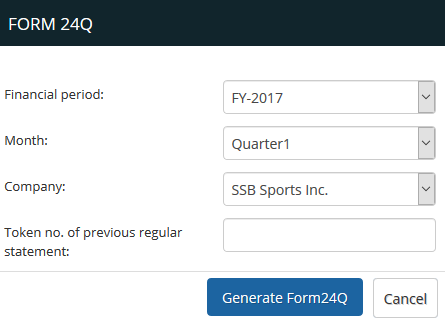
● Select the financial period for which you want to generate the Form 24Q.
● Select the quarter from the Month dropdown.
● Select your company.
● Click Generate Form 24Q.
● The file is automatically downloaded in your computer.
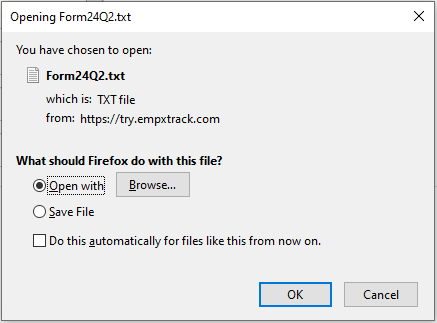
● Click OK to open the file on your computer. You can even save the file.
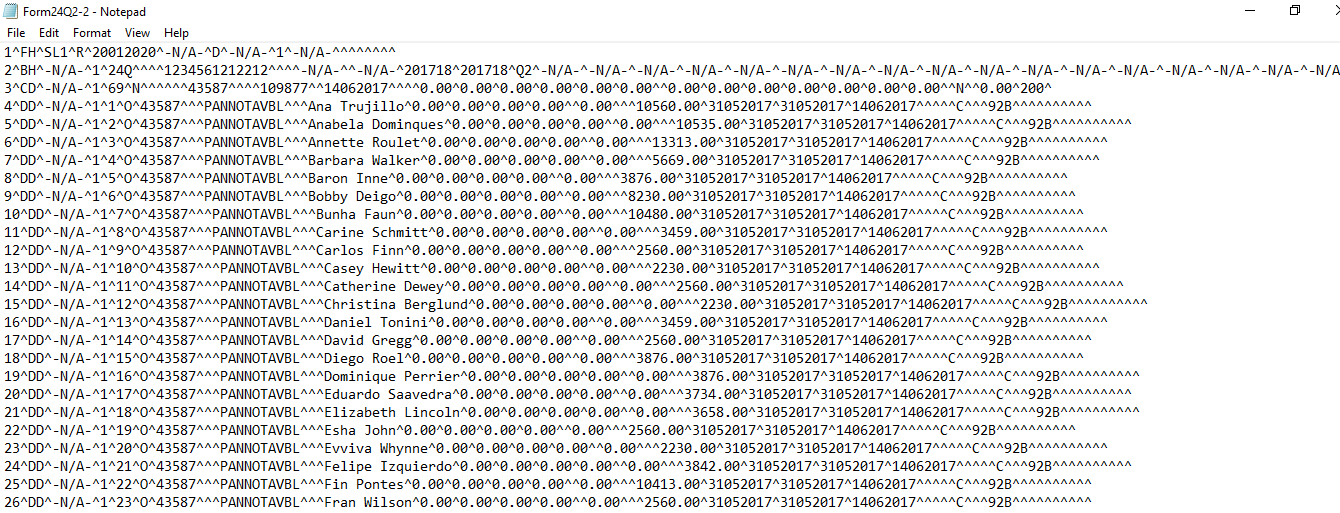
● You can now validate the file with the File Validation Utility (FVU). It is mandatory to validate the TDS returns with File Validation Utility to confirm the requirements as expected by the Income tax department.
If File Validation is successful, FVU generates a Report file with the Statistics of the return and a *.FVU file. The *.FVU file is to be copied to a pen drive and should be enclosed with a covering Letter (Form 27A) duly signed by the responsible person.
● Both letter and the *.FUV file should be submitted to the TIN FC (Taxpayer Identification Number Facilitation Center), which uploads the *.FVU file through SAM (Statement Acceptance Module) and generates an acknowledgment receipt.
Suggested Links
- Initiate Payroll
- Calculate Payroll
- Adjust Payroll
- Submit Payroll for Approval
- Finalize Payroll
- Set Payment Mode
- Disburse Payroll
- Manage Challan Info
- Capture Multiple Challan
- Capture Challan TNS 281 Details
- Add Acknowledgment Info
- Employee data verification and update
- Import number of days employee worked
- Update out of payroll payments
- Calculate deductions and set up disburse date
- Share payslips with employees
- View Payroll Reports
- View and download statutory reports and challans
- Setup and Upload Monthly Sheet
- Clear Payroll





