 Skip to content
This help page on Moving from Empxtrack Eazy Payroll to Paid Version explains the upgrade functionality where users can migrate their free application to the paid version.
Empxtrack Eazy Payroll is a free offering that allows payroll processing for free for up to 10 employees every month. Upgrade Empxtrack Eazy Payroll to increase employee licences, get implementation service and more. Get the option to add more products for free, including Leave management, Attendance, Employee appraisal, 360 Feedback, Employee exit management, and more.
Note: If you have any queries or need support to upgrade your application, click on the Request support  icon given on the bottom left of the dashboard page.
To upgrade the Free Eazy payroll application, you need to:
● Login to Empxtrack and go to the Dashboard page.

● Click on the Upgrade Your Plan or Add More Free Products button.
On this page you can do the following:
● Increase employee licenses for India Payroll and HRIS & Employee Portal.
● Start using the Free trial for Additional Solutions such as Leave Management, Attendance, Employee Appraisal, 360 Feedback, and Employee Exit Management.
Both the above options are explained below.Increase Employee Licenses for Eazy Payroll, and HRIS & Employee Portal

Note: Click on the product name (Eazy payroll), to view features, free offering details and paid features.
● To buy more employee licenses, click Buy now corresponding to Eazy Payroll. Specify the employee license count depending upon your requirement (minimum count should be 10). A dialog box appears.
Note: Empxtrack allows up to 10 free employee licenses.
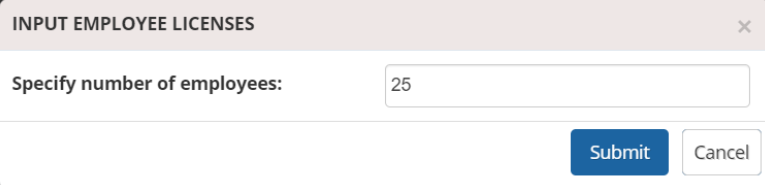
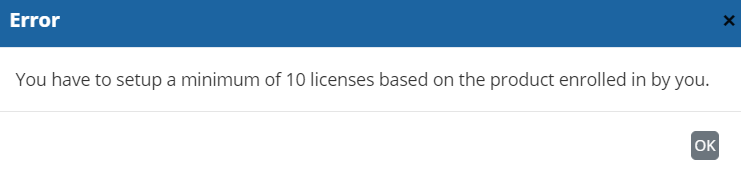
● If you enter fewer than 10 employees, an error message will appear. The message indicates that you need to set up a minimum of 10 licenses.
● If you specify employee licenses more than 10, your product will be upgraded successfully. Proceed further to make payment.
● Click Checkout. The checkout page appears displaying details of your purchase. Select an option to specify payment frequency. This applies to recurring items only.
● Click Continue shopping to add more products or to upgrade the license count.
● Click on Make payment. You will now be redirected to the Stripe payment page. Once the license count is updated, you can start using Empxtrack payroll for more than 10 employees.
Empxtrack never stores credit card and bank account details that are used for making payments.
Note: Remember, you can follow the same steps to upgrade employee licenses for other Empxtrack’s free offering products.
Start Using Free Trial for Additional Solutions Such as Appraisal, 360 Feedback, Employee Exit Management
a. Empxtrack offers additional Free Trials for other Empxtrack products, besides the one you are already using.
b. You can also purchase Implementation Services for setup and configuration of the system.

● Simply click on the “Start trial” button against the product of your choice and you will be able to view the newly added product tab on your application Dashboard page.
Notes:
● To get more information about the Upgrade process, go through the Frequently Asked Questions and avoid being confused when making a decision.
● To get more information on how to upgrade additional Empxtrack products (such as Appraisal, 360 Feedback, Exit Management and more), go through the stepwise instructions and familiarize yourself with Multiple Upgrade Options in Empxtrack.
Suggested Links
To configure payroll, the HR Manager/ Admin can refer to the following help pages:
- Payroll Configurations
- Setup Payroll Variables
- Setup Variables for Payroll Reports
- Setup Salary Structures
- Add Salary Heads to a Salary Structure
- Assign a Salary Structure to Employees
- Upload Salary Structure
- Upload Past Salaries for Employee
- Download Employee Salaries
- Setup Investment Declaration
- Configure Company Settings for Payroll
- Design Pay Slip
- Setup Claim Variables
For running payroll at the end of each pay period and to calculate and distribute salaries of employees refer to the following help pages:
- Initiate Payroll
- Calculate Payroll
- Adjust Payroll
- Submit Payroll for Approval
- Finalize Payroll
- Set Payment Mode
- Disburse Payroll
- Manage Challan Info
- Capture Multiple Challan
- Capture Challan TNS 281 Details
- Generate Form 24Q
- Add Acknowledgment Info
- Employee data verification and update
- Import number of days employee worked
- Update out of payroll payments
- Calculate deductions and set up disburse date
- Share payslips with employees
- View Payroll Reports
- View and download statutory reports and challans
- Setup and Upload Monthly Sheet
- Clear Payroll
- Create a Loan Request
- Setup Empxtrack Free Payroll
- Manage your Payroll using Empxtrack





