 Skip to content
Configure company settings to setup company details required for statutory reports for payroll.
To configure company settings for payroll, you need to:
● Log into the system as HR Manager.
● Click on Product configurations. In the Payroll Settings section, click Configure Payroll.
● Click on the Company settings under Payroll Settings.

Now the Company Settings page appears, where you can setup company information. This information is required for the generation of various statutory forms.
● Fill in the necessary information.
● Provide the company financial details to meet compliance. Specify bank account details and GST number. This helps in crediting the GST taxes to the user account when the Empxtrack product is purchased.
Note: Empxtrack supports both the new and old tax regimes in all its product versions.
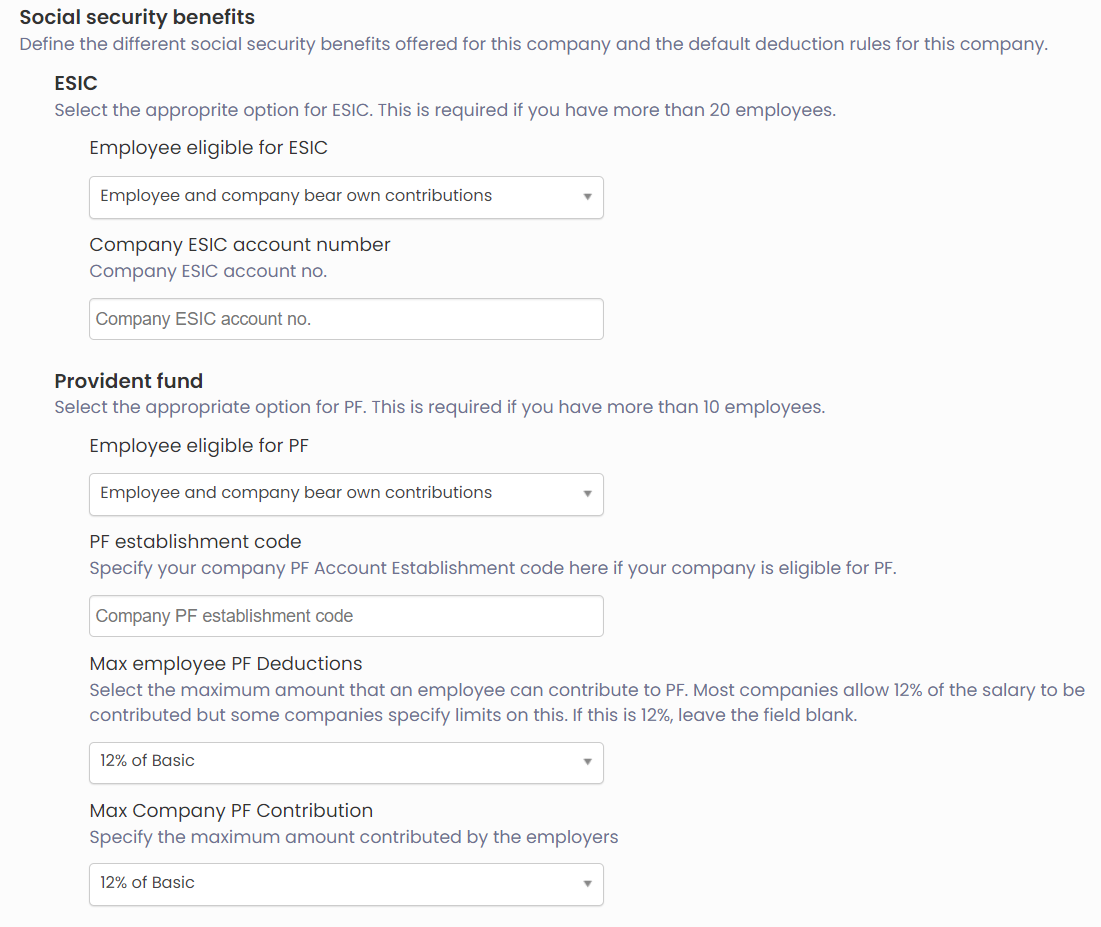
● In the Social security benefits section, select the appropriate options for ESI and PF.
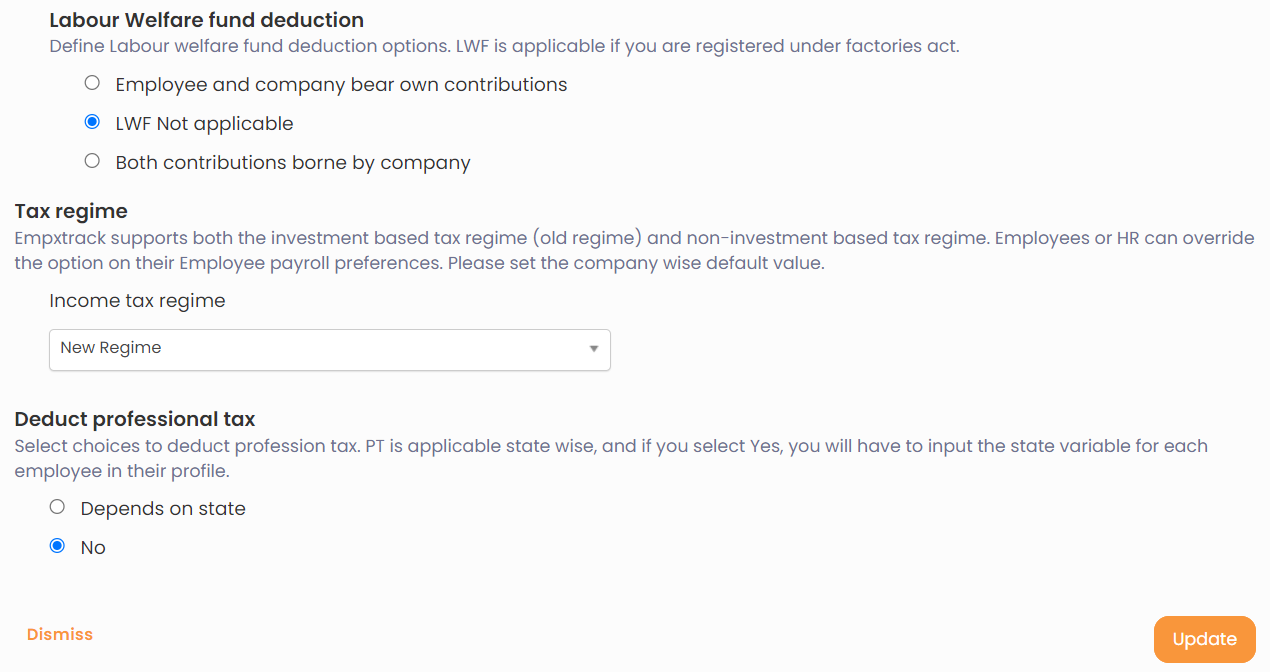
● Define Labour Welfare fund deduction by making the preferred choice from the given options
● Select the preferred tax regime for your employees from the Income tax regime dropdown.
● Click Update. The details of the company are successfully saved.
Learn more about Empxtrack Payroll
Suggested Links
- Payroll Configurations
- Setup Payroll Variables
- Setup Variables for Payroll Reports
- Setup Salary Structures
- Add Salary Heads to a Salary Structure
- Assign a Salary Structure to Employees
- Upload Salary Structure
- Upload Past Salaries for Employee
- Download Employee Salaries
- Setup Investment Declaration
- Design Pay Slip
- Setup Claim Variables





