 Skip to content
Empxtrack allows the setup and upload Monthly Sheet. It contains the values of all the parameters necessary for payroll processing. The monthly sheet helps in making changes to the payroll calculation. This help page demonstrates 2 features – configure monthly sheet and use of monthly sheet in payroll processing.
Configure Monthly Sheet
● Login to the system as an HR manager.
● Click on Product configurations.
● Under Payroll Settings section, click on the Configure payroll link. The Global settings page appears.

● You can select one of the options:
- Automatically In Payroll to import payroll inputs automatically by the system for each payroll cycle
- Outside Payroll to set or upload the monthly sheet manually by the HR Manager
The Monthly Sheet contains details, including attendance data, leave data, loan data, expense data, arrears calculation, and any other values that are expected to change over each payroll period. Empxtrack automatically imports these values from other modules to help you avoid tedious data entry. Empxtrack also allows you to clear the monthly sheet in case of some errors or changes, and add payments to the system that are paid outside the payroll.
Use the Monthly Sheet for Processing Payroll
Watch the video on running payroll for the first time
To generate monthly sheet, you need to:
● Log into the system as HR Manager.
● Click Payroll from the Roles and features  menu. The Process payroll page appears with a list of pay periods and their processing status.

● Click on any of the months. Process Payroll: Step 1 page appears, where you can view the status of the necessary items for payroll processing. It is important to update Salary structure, Attendance data and specify Date of Joining in the system.

● Select the checkbox corresponding to the names of employees whose monthly sheet you wish to process.
● Click on the Process monthly sheet for selected employees button.
● The Process Payroll: Step 2 page displays multiple sections under the In Process tab, i.e. Salary not calculated, Verification pending, Not finalized and Not shared with employees. The page also shows the list of selected employees whose payroll is calculated for the selected pay period.
You can perform multiple tasks on a Monthly sheet –
Adjust Payroll Data
● Click on the Adjust data after selecting an employee to modify the values. For example, if you want to add a bonus amount for an employee, you can add/modify those values for that employee.

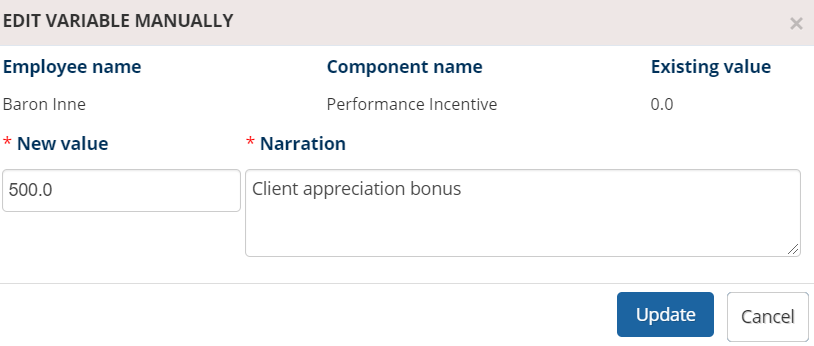
● Or click on any of the values given for Leave Without Pay, Performance Incentive or other parameters. Update their values by specifying a New Value and writing a Narration.
Reprocess Values of Monthly Sheet
● Select the checkbox corresponding to the employee names whose data you want to reprocess.
● Click the Reprocess data link and select one or more variables that need to be reprocessed. The existing data will be removed.

● Click on the Proceed button.
Download and Upload Monthly Sheet
● You can upload the monthly sheet for all the employees in one go.
● Select the employees whose monthly sheet you want to upload by clicking the checkbox corresponding to their names.
● Click on the Upload data link.
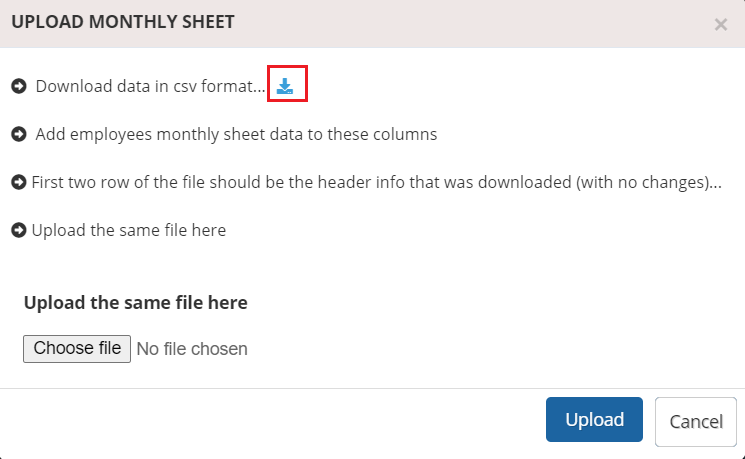
● Click on the Download  icon to download the monthly sheet of the selected pay period in CSV format.
● Fill in the details in the downloaded sheet without changing the columns.
● Once the sheet is filled, click Choose file to browse it from your system. Click Upload button.
The monthly sheet data is uploaded successfully.
Suggested Links
- Initiate Payroll
- Calculate Payroll
- Adjust Payroll
- Submit Payroll for Approval
- Finalize Payroll
- Set Payment Mode
- Disburse Payroll
- Manage Challan Info
- Capture Multiple Challan
- Capture Challan TNS 281 Details
- Generate Form 24Q
- Add Acknowledgment Info
- Employee data verification and update
- Import number of days employee worked
- Update out of payroll payments
- Calculate deductions and set up disburse date
- Share payslips with employees
- View Payroll Reports
- View and download statutory reports and challans
- Clear Payroll





