 Skip to content
The salary heads can be combined into a group called Salary Structure. This help page demonstrates steps to setup salary structure for multiple employees. You can setup salary structures and assign them to employees with variation, if required.
To setup a salary structure, you need to:
● Log into the system as HR Manager.
● On the Dashboards page, go to Role and features menu  and click Payroll.

● Payroll dashboard page appears with Payroll options (on the left).
● Click on the Setup salaries for employees.
● View the current salary structures for employees and also view employees who do not have a salary structure assigned to them. A default salary structure already exists in the system. If no salary structure is defined, the default salary structure is used by the system.
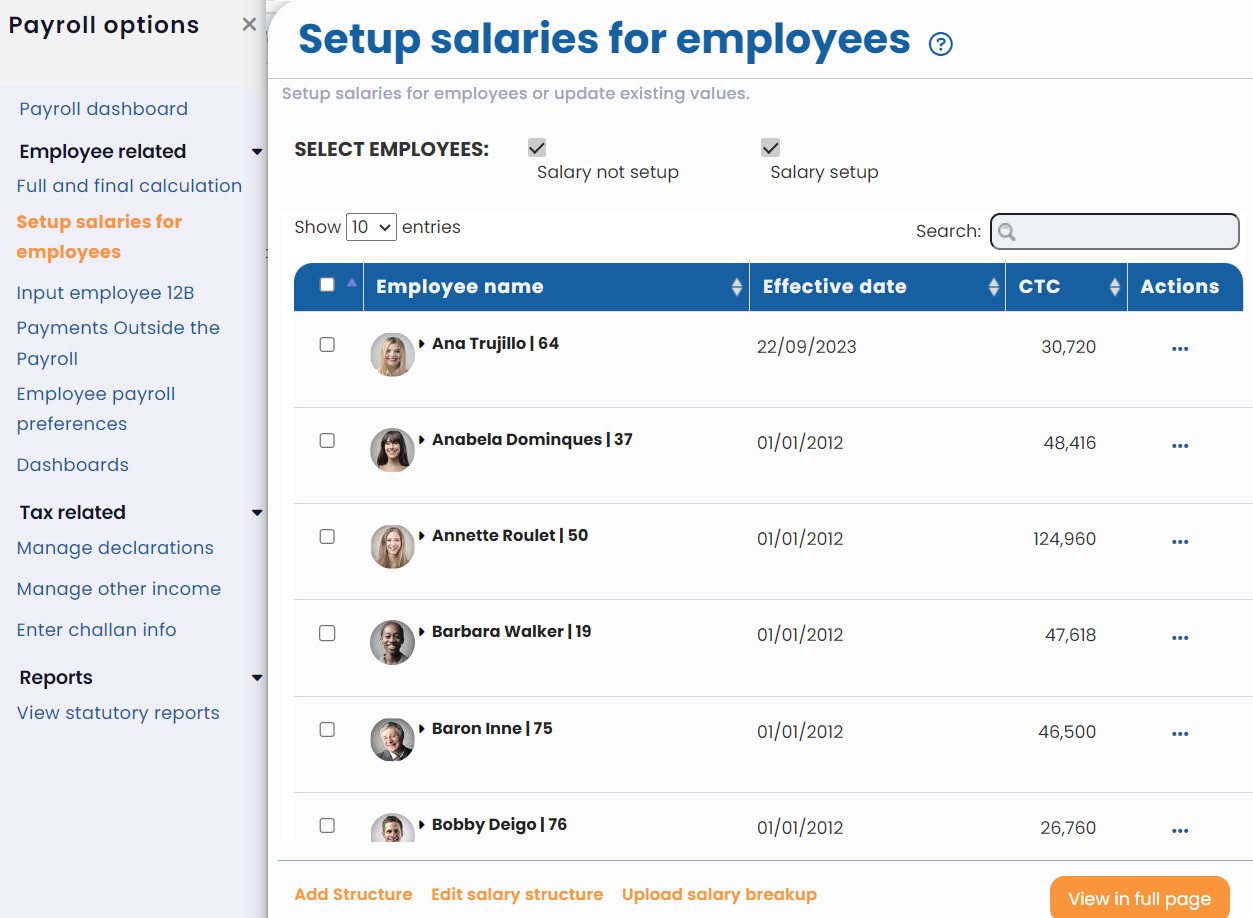
● Select the employees for whom you want to upload the salary structure by clicking on the link Upload salary breakup.
Watch a short video on how to upload salary structure for multiple employees
● You can also edit or add a salary structure by clicking Edit salary structure link.
● To add a new salary structure, click Add Structure. Provide the necessary information in the required fields.

● Click Next.
● The page further displays the default salary heads. You can modify or delete the salary heads that you don’t require.

● As soon as you put the CTC amount in the CTC (sal_ctc) field, the formula salary head fields are automatically calculated. The Balancing Head (balancing_head) field displays the remaining amount after the automatic calculation of various salary heads on the basis of CTC.
Tip: The Balancing Head amount can be used to set the amount of remaining salary heads that you want to give to your employees after calculating the formula based salary heads. In simple terms, Balancing Head field allows you to manage CTC after formula based calculations of various salary heads.
● Click Confirm to save the structure details.
● To remove a salary head, click Delete and click up and down arrows to change the order of appearance of the salary heads.
● Click Modify Head Type to modify the salary head. The Setup salary structures > Modify Head Type window appears.
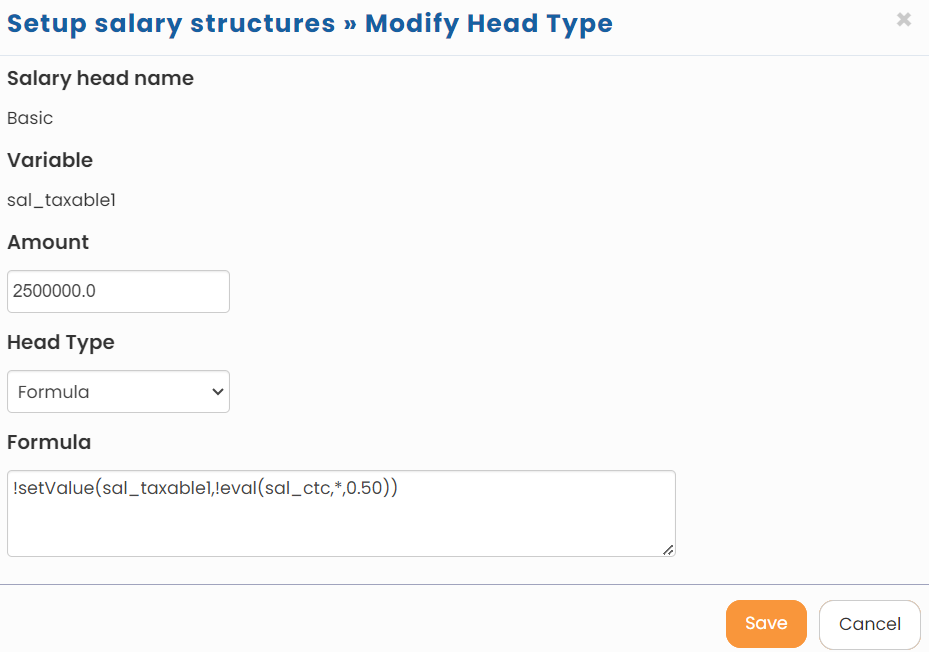
● Select the desired Head Type. The available options are:
- Constant: If Constant Head Type is selected for a salary head variable, then that salary head variable becomes a constant component in the system. The constant components are fixed for all the employees and cannot be changed for individual employees. For example, while defining the salary structure of E4 grade, if you make Medical Reimbursement a Constant salary head variable and set its Constant Amount to Rs 12,000, then all the employees of E4 grade will get Rs 12,000. The amount (Rs 12,000) cannot be changed for E4 grade employees later.
- Variable: If you select Variable Head Type for a salary head variable, then that salary head variable becomes a variable component in the system. The variable components are not fixed and can be changed for each individual employee. For example, while defining the salary structure of E4 grade, if you make Bonus a Variable salary head and set its Variable Amount to Rs 12,000, then the bonus amount for employees of E4 grade can be changed.
- Formula: If Formula head type is selected from the Head Type dropdown, then the formula for the variable can be entered/modified in the Formula field.
● Specify the value for the salary head. For example, if you have selected Variable or Constant option for Head Type, then you need to provide the amount of the salary head in the Amount field else if formula is selected then specify the formula in the Formula field.
● Click Save. The salary head is modified successfully and the amount of the head is modified / recalculated.
● Click Update to save the changes. The salary structure is successfully defined and a message suggesting the same appears.
Learn more about Empxtrack Payroll
Suggested Links
- Payroll Configurations
- Setup Payroll Variables
- Setup Variables for Payroll Reports
- Add Salary Heads to a Salary Structure
- Assign a Salary Structure to Employees
- Upload Salary Structure
- Upload Past Salaries for Employee
- Download Employee Salaries
- Setup Investment Declaration
- Configure Company Settings for Payroll
- Design Pay Slip
- Setup Claim Variables





