 Skip to content
This help page displays step wise instructions to upload Past Salaries for Employees that allows upload of salary data of prior pay periods, all in one go. This functionality is useful for employers who use another system to calculate salaries and use Empxtrack for generating payslips.
To upload employee past salaries in one go, you need to:
● Log into the system as HR Manager.
● On the Dashboards page, click on the Product configurations link.
● Under Upload Data, click on the Upload salaries.
● The Upload salaries page appears.Click on the Download Sample Sheet in csv format.
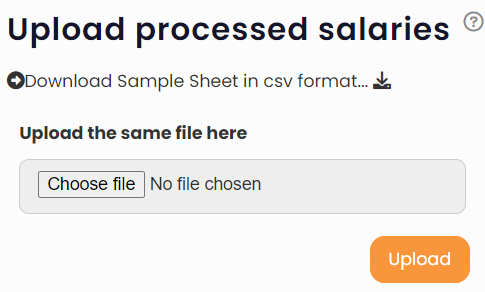
● Save the downloaded file on your system. Fill in the details in the correct format in the file.

● Ensure that the dates that you provide appear in the format mentioned in the file. If dates do not appear in the desired format, then right-click the date cell(s) in which you are providing dates and then select the correct date format so that the date appears in <MM/DD/YYYY> format.
● Once you have added the data of all the employees in the csv file, you can upload the file to the Empxtrack system by clicking Choose file and uploading the file from your computer.
● Click Upload. The processed salaries are uploaded successfully in the system.
Suggested Links
- Payroll Configurations
- Setup Payroll Variables
- Setup Variables for Payroll Reports
- Setup Salary Structures
- Add Salary Heads to a Salary Structure
- Assign a Salary Structure to Employees
- Upload Salary Structure
- Download Employee Salaries
- Setup Investment Declaration
- Configure Company Settings for Payroll
- Design Pay Slip
- Setup Claim Variables





