 Skip to content
Empxtrack offers more than 15 statutory reports and challans required for payroll reporting in India. View and download statutory reports and challans whenever required.
Note: Empxtrack Free Payroll and HR software offers a few statutory reports. Upgrade to a paid version to access more reports. Watch a short video on how to upgrade Empxtrack Free Payroll software in just a few clicks
To view and download statutory reports and challans, you need to:
● Login to the system as an HR Manager.
● Click on Payroll from the Roles and features  menu. Under Payroll shortcuts, click View statutory reports.

● A page appears with the list of statutory reports available in the application. A brief description of each report and challans is given with a tip (question mark) shown against each report.

Note: Some of these statutory reports and challans are not available in Empxtrack Free Payroll and HR software. Upgrade to a paid version to access all statutory reports.
Form 16
● Click Form 16.
Form 16 contains tax details that are deducted by the employer on behalf of the employee. The same will be paid to the government by the company. All taxpayers ought to use Form 16 to file their Income Tax Return (ITR) at the end of the financial year.
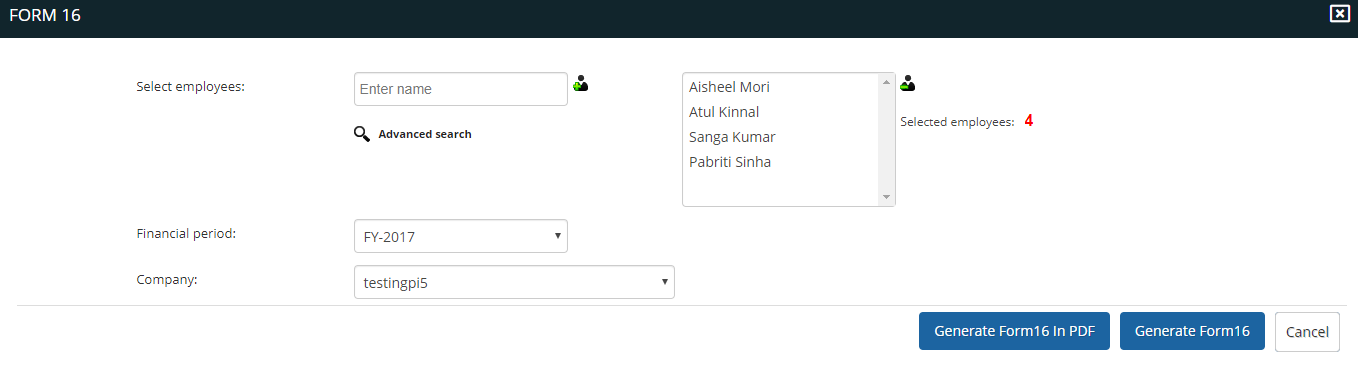
● Click the Generate Form 16 button to generate the report.
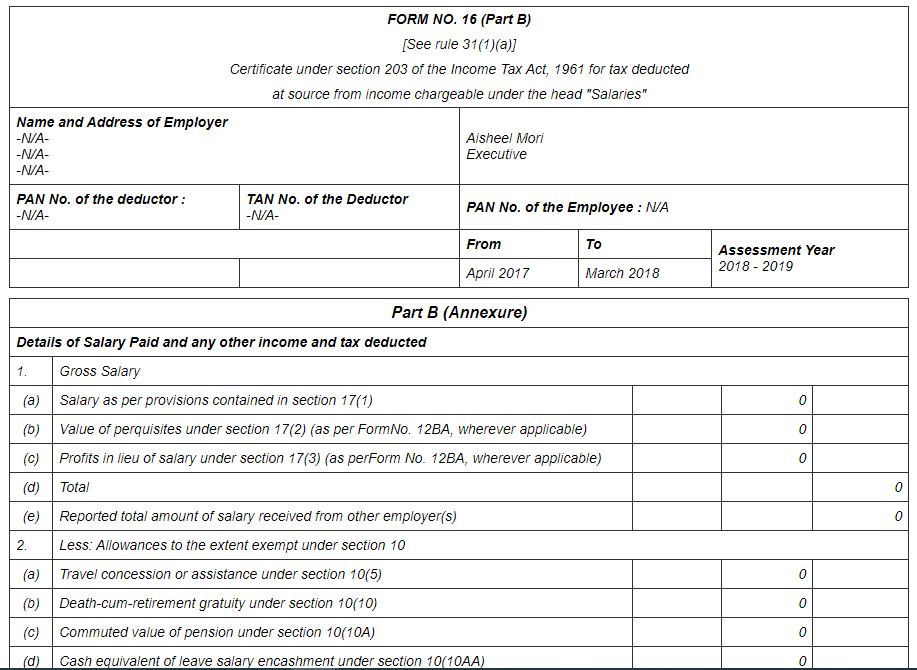
● Click Cancel to go back to the statutory reports page and view another report.
ESIC Monthly Contributions
● Click ESIC Monthly Contributions to view the ESIC report.
A new page appears asking you to enter the financial year, and click the View report button.
ESIC refers to the Employees State Insurance Corporation. The benefits offered by ESIC are in line with the Conventions of the International Labor Organization. These benefits include Medical, Sickness, Disablement Benefits, etc.

● The report is generated successfully to give details of the ESIC amount deducted from employees’ salaries.
Form 24Q
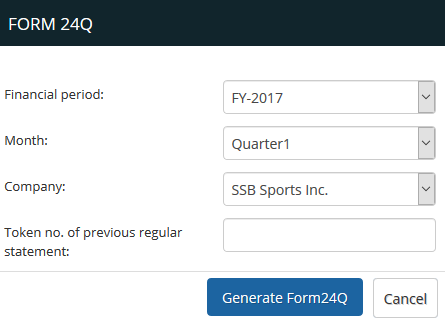
● Click Form 24Q to generate the form. A new page appears where you can select the preferred Financial Period, Month, and Company Name, and enter the Token number of the previous regular statement. Then click the Generate Form 24Q button. Learn how to generate Form 24Q in detail.
Form 24Q is a quarterly statement containing details of the taxable salary of employees and the tax deducted. Every employer is responsible for submitting Form 24Q in each Quarter to the Income Tax Department.
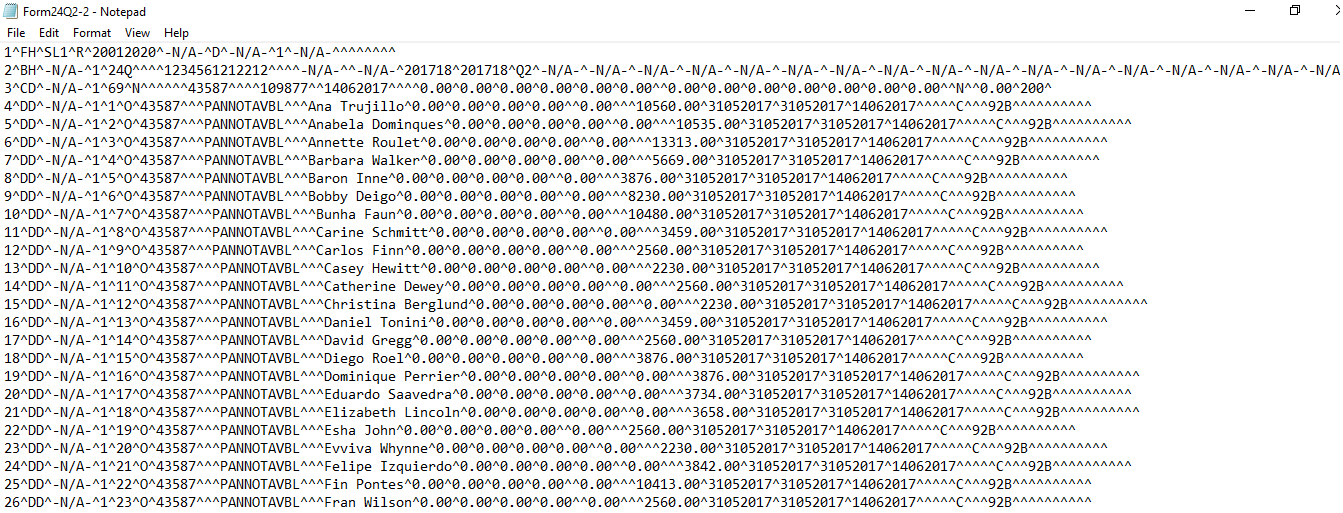
● A text file is generated successfully.
To learn more about statutory reports, visit the help page Statutory Reports India.
Learn more about Empxtrack Payroll
Suggested Links
- Initiate Payroll
- Calculate Payroll
- Adjust Payroll
- Submit Payroll for Approval
- Finalize Payroll
- Set Payment Mode
- Disburse Payroll
- Manage Challan Info
- Capture Multiple Challan
- Capture Challan TNS 281 Details
- Generate Form 24Q
- Add Acknowledgment Info
- Employee data verification and update
- Import number of days employee worked
- Update out of payroll payments
- Calculate deductions and set up disburse date
- Share payslips with employees
- View Payroll Reports
- Setup and Upload Monthly Sheet
- Clear Payroll





