 Skip to content
The help describes how employees can seek TDS advice for a financial year. Employees are expected to declare their investments at the start of every financial year. It is important to submit the documents and proof to support their investment declarations before the end of the financial year. Tax is calculated based on their investment declaration. Empxtrack allows employees to generate and seek TDS advice for a financial year on both the declared and the actual investment amount.
Empxtrack supports the new and old income tax regimes allowing employees to make the preferred choice.
To seek TDS advice, you need to:
● Log into the system as an Employee.
● On the Dashboards page, go to the Role and features menu  and click Salary records.

● Alternatively, type “TDS advice” in the Search bar and select the option as View current tax advice.
● A new page appears where employees can view payslips, salary details and payment mode for disbursed salaries.
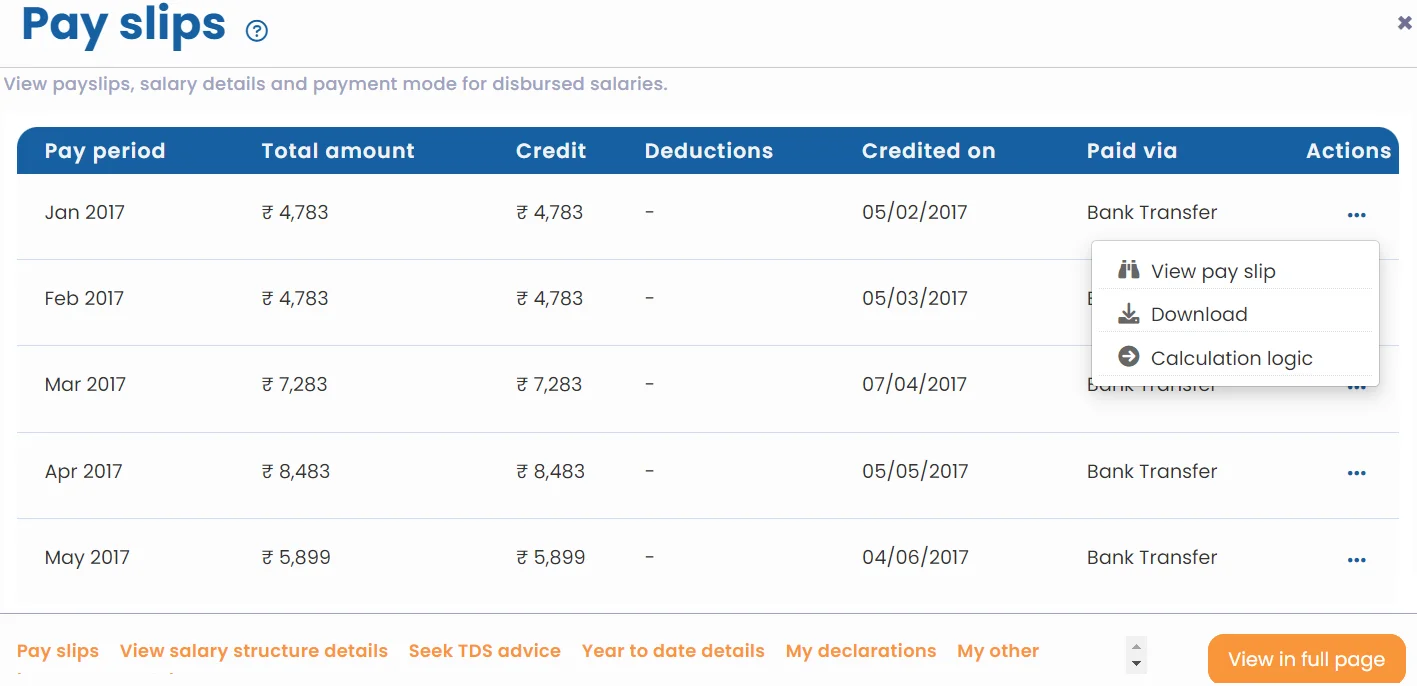
● Click Seek Tax advice. The TDS advice page appears.
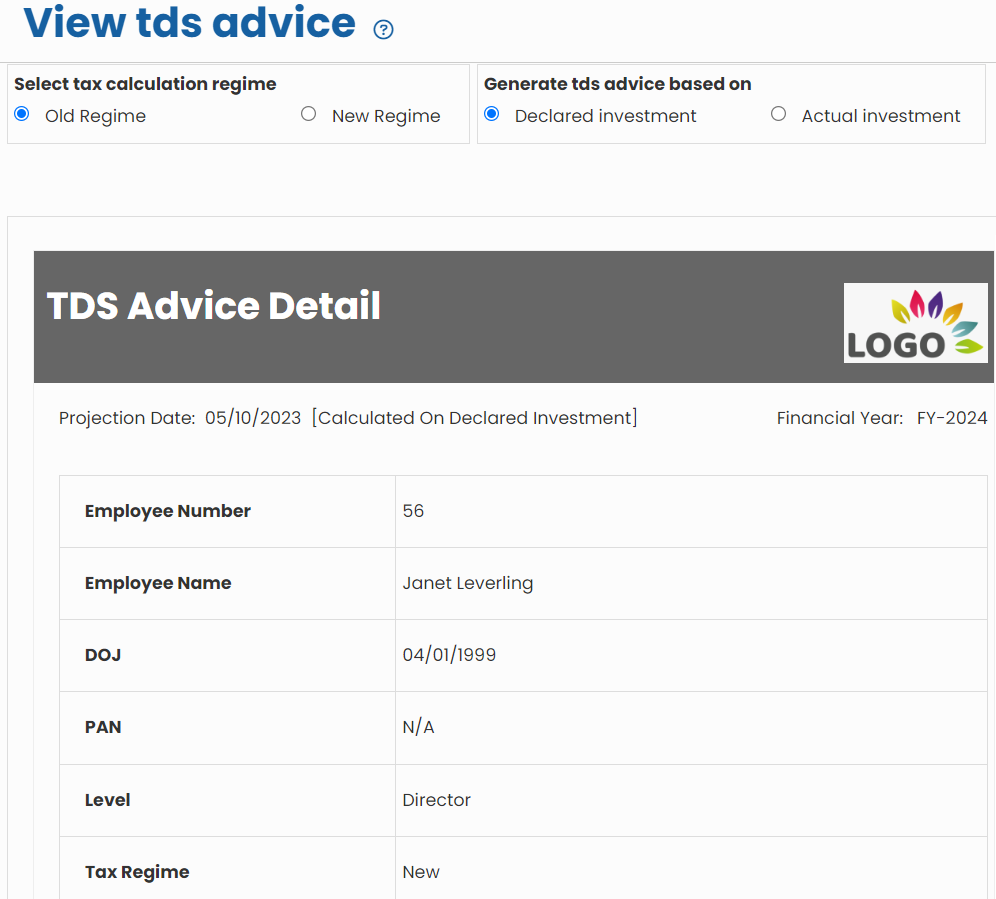
● Select the income tax regime as Old Regime or New Regime in Select tax calculation regime section.
Note: When Old Regime is selected, the investment can be calculated on Declared and Actual investments. For New Regime, the tax advice is calculated directly as no investments are declared in this regime.
● Select the investment type for which you want to calculate tax for TDS advice generation from the TDS Advice Based On field. The available options are:
- Declared Investment: If this option is selected, the TDS would be calculated on the investment declarations that you have provided to the company and the TDS advice would be generated on the calculated amount.
- Actual Investment: If this option is selected, the TDS would be calculated on the actual investment proof that you have submitted to the company and the TDS advice would be generated on the calculated amount.
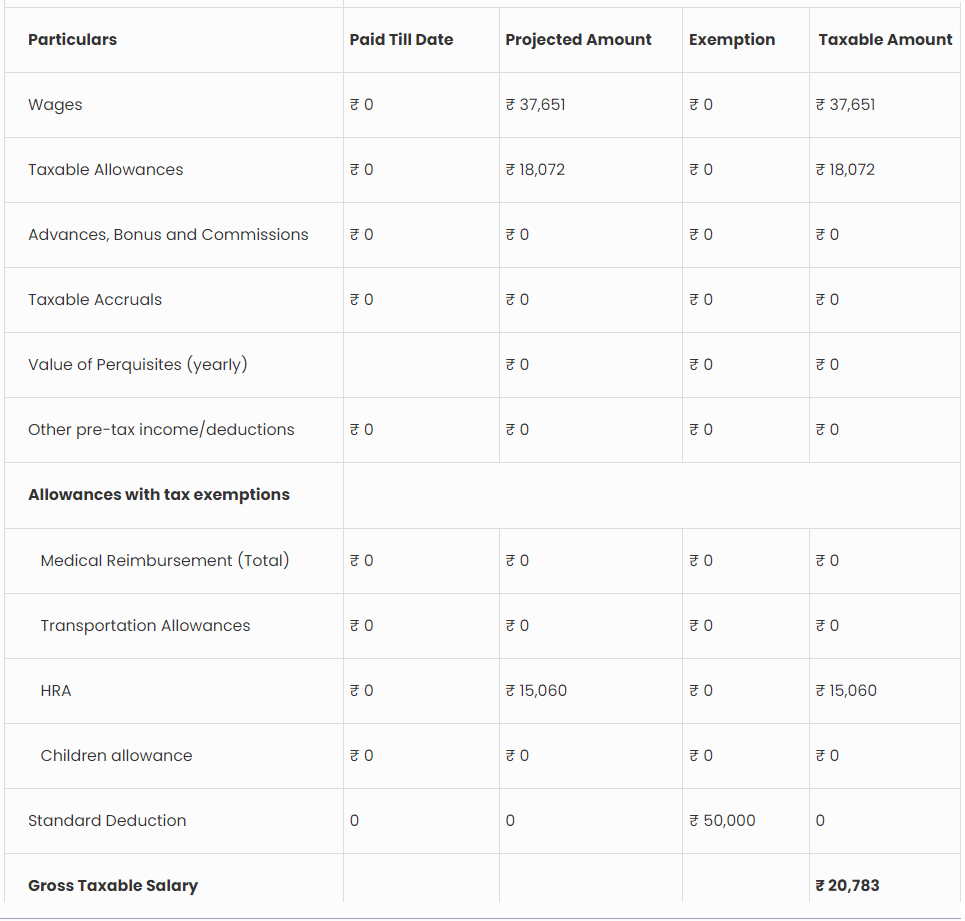
● The page displays the salary amounts Paid Till Date, Projected Amount, Exemption and the Taxable Amount. The page further details the employee investment exemptions that (s)he can get on that amount.
● It also displays exemptions on the House Rent Receipts provided by the employee based on the Location and HRA component of the salary.
● All the details of investment declarations and deductions are displayed. Employees can also view details of their total tax deducted and exemptions gained.
Learn more about Empxtrack Payroll
Suggested Links





