 Skip to content
Empxtrack allows configuration of various rules related to 360 feedback, to map the existing process of the company. Configure 360 feedback rules, initiation, and reports to simplify the process for your organization.
Note: The steps mentioned below are of Empxtrack Enterprise product.
To configure 360 feedback rules, you need to:
● Log into the system as an HR Manager.
● Click on the Product configurations tab. Under Performance management, click on the Configure 360 degree feedback link.
● In the Initiation section, select the desired option. The available options are:
- Feedback can be initiated by employee: Select this option to allow employees to initiate their 360 feedback.
- Feedback can be initiated by manager for the employee: Select this option to allow managers to initiate 360 feedback for their team members.
- Feedback can be initiated by HR: Select this option to allow the HR manager to initiate 360 feedback for all employees in the organization.
- Feedback is initiated by system: Select this option to auto initiate the 360 feedback of employees by the system using a scheduler.
Most of the organizations prefer the HR manager to initiate the 360 degree feedback for employees.
Configure 360 Feedback Rules
● Configure the rules for the feedback in the Rules section to identify whether new feedback can be generated when an existing one exists, viewing rules and editing of feedback.

● Select Allow a new feedback to be initiated when an existing feedback exists, if you want to allow a new feedback to be initiated even if a feedback already exists for the same employees for the same duration.
● By default, Deny a new feedback to be initiated when an incomplete feedback is still existing, is selected in the rules section. You can uncheck the checkbox if you want to allow users to initiate feedback even if an incomplete feedback exists.
● Select Who can view individual respondent feedback? if you want to allow only the selected roles to view it. Select By Employee, By Manager, or By HR Manager options if you want the employee, manager, and/ or the HR manager to view the individual respondent feedback of an employee.
● In the checkbox, Select roles who can view consolidated feedback report, if you want to allow only the consolidated feedback to be viewed by selected roles. In this case, the user will not be allowed to see the individual ratings given to an employee by different reviewers. Select By Employee, By Manager, or By HR Manager options if you want the employee, manager, and/ or the HR manager to view the consolidated feedback of an employee.
● Select Allow HR Manager to edit any respondent feedback if you want to allow the HR manager to edit the feedback ratings of the employee.
Configure Report Settings
● Once the 360 feedback rules are configured, you can configure report settings by choosing the following options in the Reports section. Setup all the elements that will display in the reports.
● Click the Edit link to modify the Text to be shown at the top of the report and Text at the bottom of the report.
Note: Only the Administrator is allowed to make changes by clicking the Edit links throughout this section.
● Select the checkbox corresponding to each report that you want to generate for the feedback.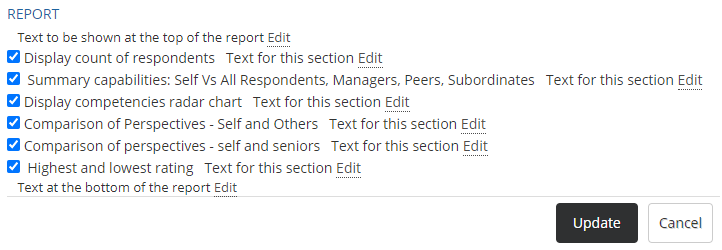
● Click Update to save the settings.
Learn more about Empxtrack 360 Degree Feedback
Suggested Links





