
Once the 360 feedback plan is created and configured, the HR manager can initiate the plan for all or specific employees of the company. This help page demonstrates step-wise instructions to initiate a 360 feedback plan.
Note: The steps mentioned below are for the Empxtrack Enterprise product.
Watch a video on how to initiate 360 feedback for an employee
To initiate a 360 feedback, you need to:
● Log into the system as an HR Manager.
● On the Dashboards page, click on the 360 feedback tab. A new page appears where you can view feedback of your team members.

● Click Initiate 360 Feedback. A new page appears where you have to select the required 360 feedback plan.
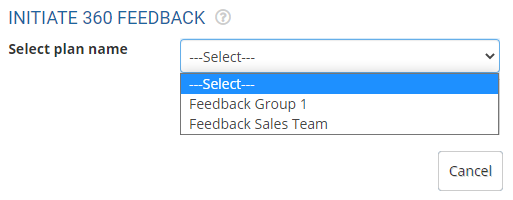
● Select a plan name. The related fields appear that display details of the feedback plan. The list of employees who are eligible for this feedback plan is already populated, as per the choice made at the time of creation of the plan.
Note: If you have not selected any group in the Applies to dropdown while creating the new plan, the list will be blank.
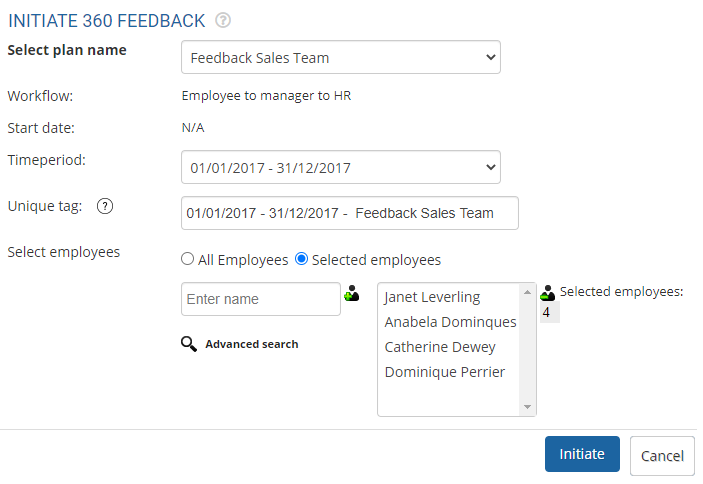
● Select the period for which you want to use the feedback plan.
● Specify a Unique tag to initiate 360 feedback.
● Choose an option for the Select employee field. You can either choose All employees or Selected employees. If you choose the option of Selected employees, you might view already selected employees based on the plan configuration.
● Add more employees to the selected list by specifying the name of the employee in the Enter Name field and clicking the plus sign (+) to shift the employees in the list of selected employees. Select the employee name and click the (-) sign to remove a specific employee.
You can use advanced search to select all the employees together or find the names of the employees. To know more about this feature, click Advanced Search.
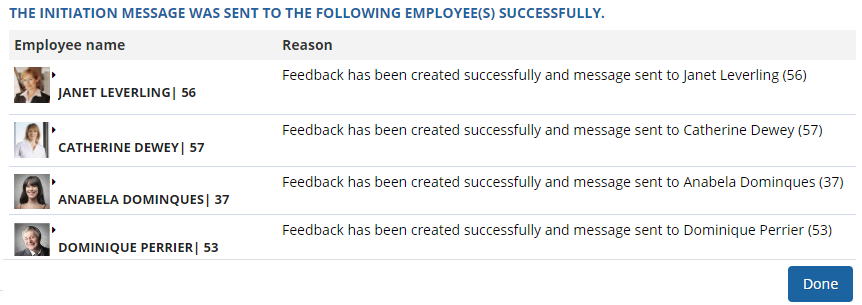
● Click Initiate. 360 feedback is initiated successfully, and a message suggesting the same appears.
Learn more about Empxtrack 360 Degree Feedback
Suggested Links





