 Skip to content
Empxtrack allows a manager to evaluate one or more employees at the same time. Evaluation of multiple subordinates simultaneously gives a comparative view of their performance. This help page demonstrates steps to quickly evaluate multiple team members simultaneously, and compare and rate them on the same parameters.
Note: The steps mentioned below are of Empxtrack Enterprise product.
Watch a video on how managers complete appraisal for their team members
To evaluate multiple team members, you need to:
● Log into the system as a Manager.
● Go to the Role and features menu and click Appraisals.
● Filter the appraisal records by selecting the relevant period, appraisal type, and groups from the Time period, Appraisal tag, and Groups dropdown. To view the steps for filtering appraisal records to manage the team appraisal, click Manage team appraisal.

● The page displays the appraisals of all your team members for the current time period.
● To evaluate multiple team members, select the team members whom you want to evaluate by clicking the checkbox corresponding to the employee names.
● Click the Evaluate selected button. A new page appears that displays a list of appraisal forms. By default, the first form is opened. Here Introduction form is the first form that provides general instructions to fill out the appraisal forms.

● Now go to the next form, click the Goal Sheet tab, where you can rate multiple team members. By default, the goal sheet form for the first employee is opened.
● Provide your Rating and Comments in the respective fields for the first employee.
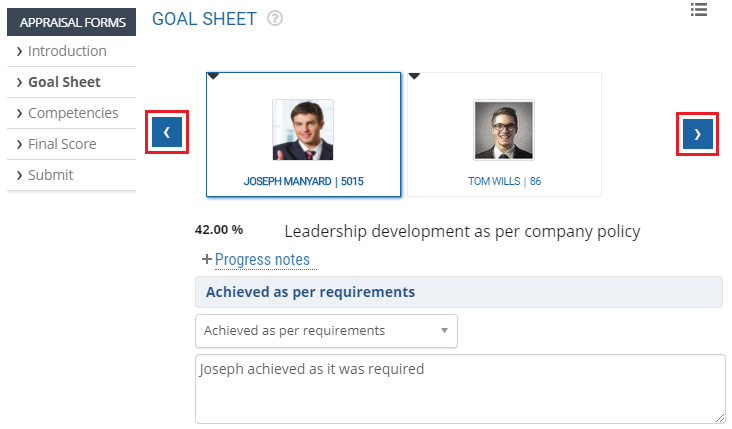
● Click on the name of the next employee to view the goal sheet form for the next employee. Provide your Rating and Comments in the respective fields.
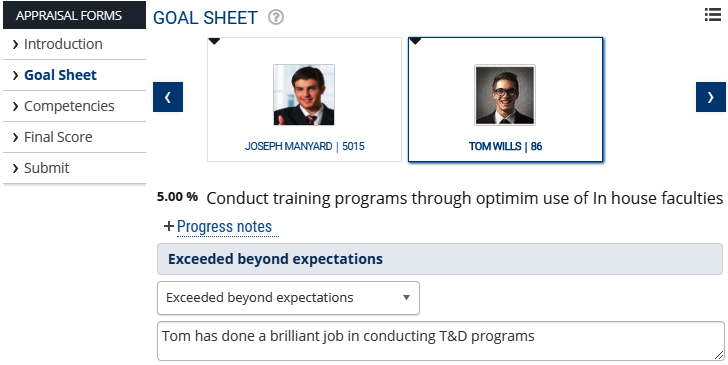
● Click Save button and move to the next form by clicking on the Next form button. Competencies form appears.
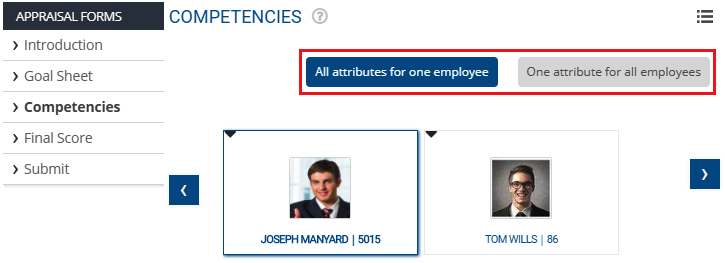
● The form displays the team member’s comments and ratings on each parameter against the name of the employee on the page.
● Select your Rating and provide Comments for each parameter for all the employees.
● Click Next to rate employees on the following parameter, complete ratings for all parameters in the form, and then click Save All. The form is successfully submitted and a message suggesting the same appears.
● Evaluate the team member on all the forms (if there are other forms available) and then click on Final Score tab.
● Final score form displays the calculated scores for the individual forms on the appraisal.

● Provide your comment and remarks in the Comment textbox and then click Save. Click Next form, and you can view the Score form.
● Give an overall rating at the end of the form and then click Submit.
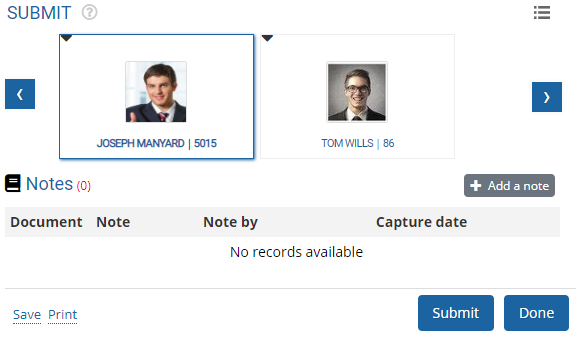
● The form is successfully submitted to the next person as defined in the appraisal workflow.
Suggested Links
- Setup Performance Appraisal Plans
- Initiate Appraisal
- Change Appraisal State
- Configure Performance Potential Settings
- Appraisal-Employee Access
- Manage Team Appraisal – Filter Records
- Print Appraisal
- Manager Appraisal Dashboard
- Create a new Rating Scale





