 Skip to content
Empxtrack appraisal software offers a functionality to manage appraisal ratings. This feature allows addition and modification of ratings for different appraisal forms.
To add and modify ratings, you need to:
● Log into the system as HR Manager or Administrator.
● Go to Product configurations and click on Appraisal plans.
● Click the View icon to open the appraisal plan in which you want to add or modify the current rating scale.
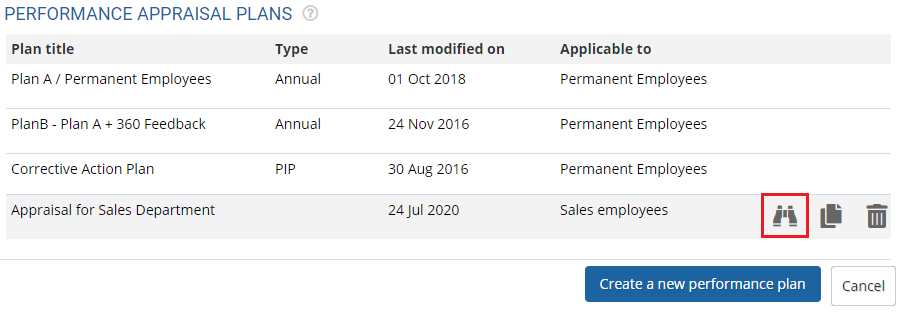
● A page appears where you can view details of the Plan.
● Click the Form & Settings tab. Click the Edit icon for a specific appraisal form. For instance, click on the Competency Form.
● In the Rating and comment options section, click the Manage Rating link.

● The manage rating dialog box will appear. The dialog box contains Rating name, Rating Types, Rating Visibility and Rating comment in 4 steps.

Modify an Existing Rating
● Login as HR manager.
● Go to Product configurations, under Setup masters, click on Manage ratings. The Rating Master page will open.
● Click Modify icon corresponding to a rating that you wish to modify.

● A new section appears where you can modify the settings of the existing rating scale.
● Modify name of the rating in Title field and the description of the rating in the Description field.

● Select the type of rating that you want to keep for the Type field.

● Modify the Label. The labels can be text strings or numeric values as per your requirements. The labels help employees and managers understand what a score implies.
● Modify the Score that is assigned to each label. The scores are used in appraisal score calculations.
● Specify and modify the description of each label in the Description field (if required). Click on the Delete link for any of the label that you want to remove.
● Click Add link icon to add more rating choices for the rating scale. Click Next and the Rating visibility tab will open.

● View how the ratings choices will show up in the appraisal form. Select one of the options available for display.
- Drop down: Select this option to display the rating scale as a dropdown on the page.
- Radio buttons: Select this option to display the rating scale as radio buttons.
- Star: Display the rating scale as stars on the page where it is used.
- Slider: Select this option to display the rating scale as a slider with a minimum and maximum score.
● Click Next. The Rating comment tab will open. Select one of the available choices for the Comment options and then click Confirm. The rating is successfully modified and a message suggesting the same appears.

Add a New Rating
● Click on the Add button as shown on the Rating master dialog box.

Provide the name of the rating in Title field and the description of the rating in the Description field.
- Next, select the type of rating that you want to keep for the Type field. You can either select Standard rating format or choose to keep a Range for the rating.
- Provide a label for the rating. The labels can be text strings or numeric values as per your requirements.
- Provide the score value in the Score field for all the rating labels. The scores are used in appraisal score calculations. Specify the description of each label in the Description field.
- Click Add link to add more rating choices for the rating scale. A new row is added where you can now provide a new choice for the rating scale.
- Next, select the preferred options from the View options and Comment options for the rating and comment display formats.
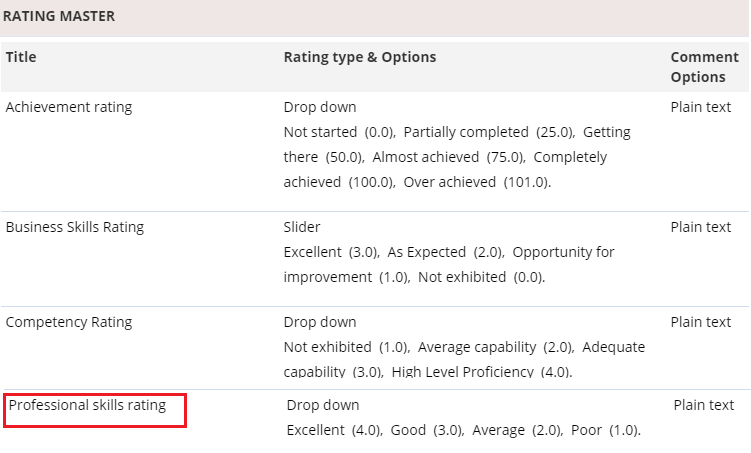
● Click Save. The new rating is successfully added to the rating scale as shown.
Suggested Links
- Setup Performance Appraisal Plans
- Initiate Appraisal
- Change Appraisal State
- Configure Performance Potential Settings
- Appraisal-Employee Access
- Manage Team Appraisal – Filter Records
- Print Appraisal
- Manager Appraisal Dashboard





