 Skip to content
Configure the Final Score form to display the calculated scores for each form. The final appraisal score is calculated based on the scores given to the employee across various forms. The form shows scores provided both by the employee and the manager.
Note: The steps mentioned below are of Empxtrack Enterprise product.
To configure the Final Score form, you need to:
● First, follow the steps given on the Configure Performance Appraisal Forms page.
● Click the Edit icon corresponding to the Final Score form. The form appears in editable mode.
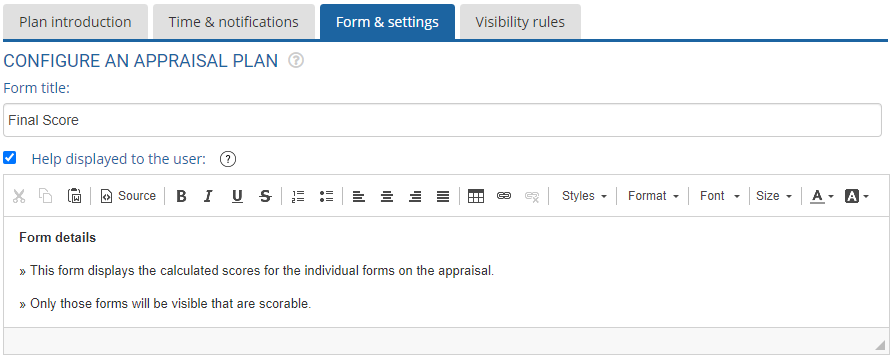
● Configure the help instructions in the Help displayed to the user text field as per your requirements. This field is useful, especially when you modify certain fields and want to provide help on those fields. By default, Help displayed to the user checkbox is marked. If you do not want to show help instructions to the user on the Final Score form, uncheck this checkbox.
● In the Rules for final scores section, select an option for the Form display options field. Select Show all forms on this page radio button if you want to display the scores of all the forms. Else, select the Show forms with weight greater than 0 option to display only the forms that have a weight greater than zero.
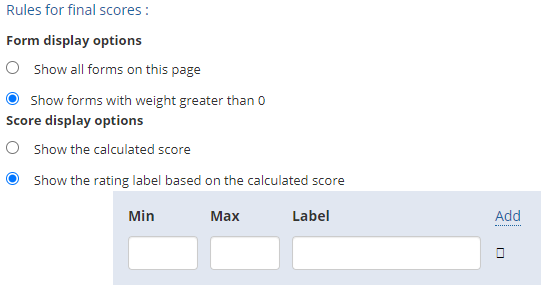
● For the Score display options field, select one of the available options. Select Show the calculated score checkbox if you want to display the calculated score. Else select Show the rating label based on the calculated score option, and specify values in the Min, Max and Label text boxes.
● Select Display of ratings to employees option to hide the manager’s scores from the employees.
● Select Enable auto save of appraisal form to allow saving of the form.

● Click Save. The configurations on the Final score form is successfully saved and a message suggesting the same appears on the screen.
● Click Cancel to go back to the Forms & Settings tab.
Suggested Links
- Setup Performance Appraisal Plans
- Initiate Appraisal
- Change Appraisal State
- Configure Performance Potential Settings
- Appraisal-Employee Access
- Manage Team Appraisal – Filter Records
- Print Appraisal
- Manager Appraisal Dashboard
- Create a new Rating Scale





