 Skip to content
A mentor helps an employee to develop skills for better career growth. Mentoring functionality enables employees to add a mentor. This help page explains mentoring functionality for the employee and HR roles.
HR can view employees and assigned mentors, assign a mentor to employees, and view the development plan assigned to each employee.
Request a mentor
To add a mentor, you need to:
● Login to the system as an Employee.
● Go to the My Profile section and under the Reporting structure, click on the + Change reports to link.
A dialog box My relationship > Change reports to appears.
● Select the Modify? checkbox to change a relationship.

● Specify the name of the new manager in the Specify new manager field. You can’t add the name of the new manager until the Modify checkbox is selected.
● Write your comments in the Notes section.
● Click Submit and a confirmation message appears on the screen informing you that your request has been submitted successfully. You will be notified once the approval process is complete and changes are updated in the database. You cannot make changes to this record till the request is approved or rejected.
Assign a Mentor
To assign a mentor to an employee, you need to:
● Login as an HR manager.
● Go to the Development tab and scroll down to the Mentoring section. You can click on the checkbox Display employees with no mentors as well to view a list of employees without mentors.
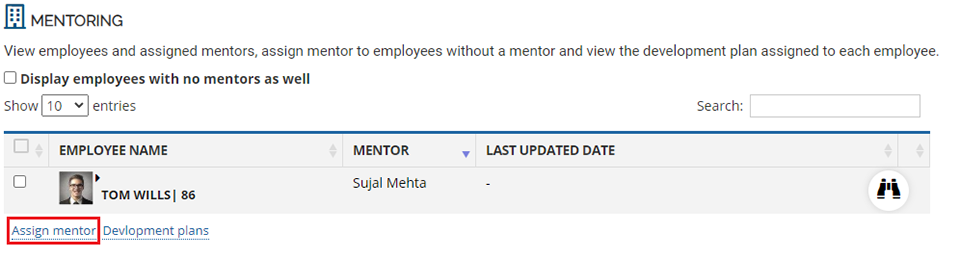
● Click on the Assign mentor link. A dialog box Assign mentor for employee appears on the screen.
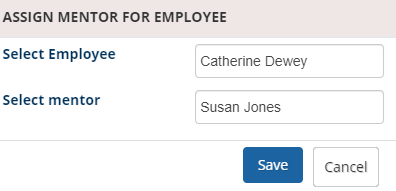
● Input the name of the employee to whom you wish to assign a mentor in the Select employee textbox.
● Provide name of the mentor in the Select mentor textbox.
● Click Save.
A message appears suggesting that the mentor has been assigned to the selected employee.
View Development Plans
HR and manager can view development plans created for an employee. They can view details on the development plan type, its status, created by and start and end dates.
An HR manager can view reports of the development plan for employees.
Learn more about Empxtrack Succession Planning
Suggested Links





